How to rename a heading in Obsidian without breaking links
Right-click the heading and choose Rename this heading.
As of October 2026, the core Backlinks pane lists every note that links to the current note. It has no filter that hides the notes you already link to. A Dataview query or a plugin can show only the one-way backlinks.
One-way Backlinks has Pro, and $15 one time turns it on in all 129 plugins.
The forum request "Option to show only non-reciprocal backlinks" asks to show only backlinks from notes that the current note does not link to. The product brief counted 15 posts and 42 likes on 1 November 2026.
The Backlinks core plugin shows Linked mentions and Unlinked mentions for the active note in the right sidebar. It can collapse results, show more context, change the sort order and show a search filter.
To find one-way links, compare the Linked mentions with the links in your note by hand.
Posts 15 and 17 of the forum topic give a Dataview query for this job. You paste the query into each note where you want the list.
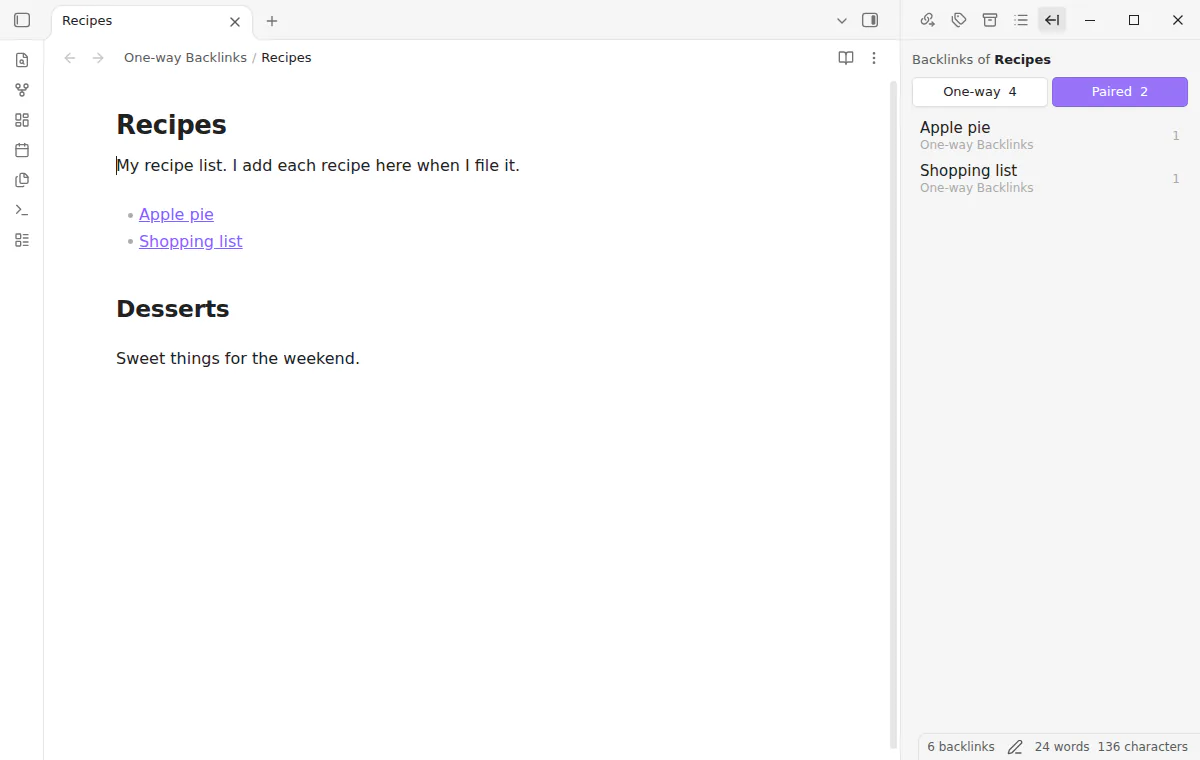
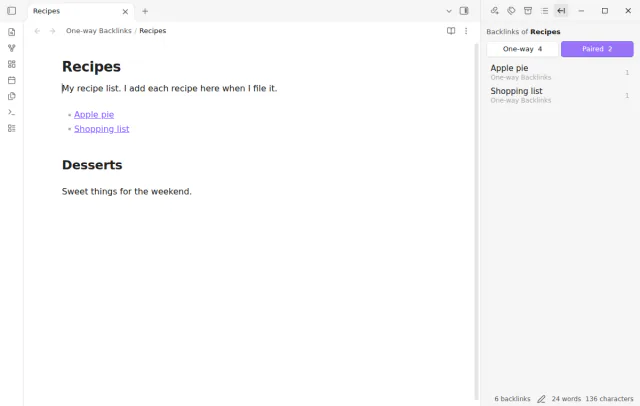
One-way Backlinks adds a pane with two lists. One-way shows the notes that link to the current note and that it does not link to. Paired shows the notes that link both ways.
Each row shows the note name, its folder and the number of links to the current note. Wikilinks, Markdown links, embeds and links in properties count, the same set as the core pane.
MIT · no telemetry · core features free
Open Settings, then Community plugins, and turn off restricted mode.
Select Browse, search for One-way Backlinks, then select Install and Enable. It needs desktop Obsidian 1.13.4 or later.
Open a note, for example a map of content. The pane in the right sidebar shows the One-way list.
Select Paired to see the notes that link both ways. Select One-way to go back.
If you closed the pane, run the command One-way Backlinks: Open pane from the command palette.
Add a link to a note from the One-way list. After Obsidian saves and indexes the note, the row moves to Paired.
The core Backlinks pane shows all of them in one list. One-way Backlinks splits them into a One-way list and a Paired list. A note that the current note links to is always in Paired.
Yes. Obsidian treats an embed as a link, and the core Backlinks pane counts it too. A note that the current note embeds shows in Paired.
Obsidian indexes a note after it saves it, about two seconds after the last key. The row moves when the index has the new link.
 That's every step, start to finish.
This guide uses One-way Backlinks. Pro adds "Link back" and "Hidden folders". One payment of $15 turns on Pro in 129 plugins.
This guide uses One-way Backlinks. Pro adds "Link back" and "Hidden folders". One payment of $15 turns on Pro in 129 plugins.
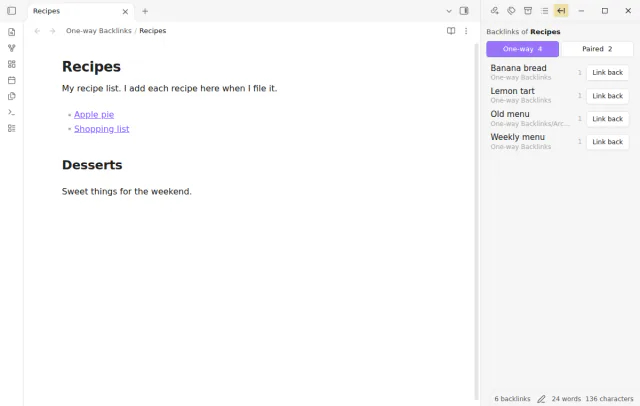
See the backlinks that the current note does not link to yet, in a pane with a One-way and a Paired list.