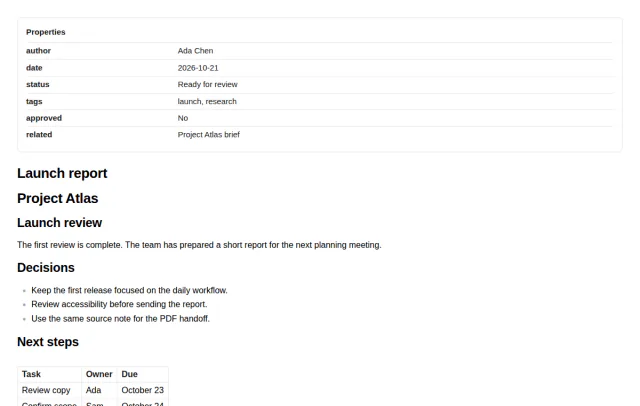
Properties in PDF Export
Author, date, status and tags print as a readable header when you export a note to PDF.
Import Joplin archives as linked Markdown notes with tags, dates, and local attachments.
MIT · no telemetry · core features free
The directory takes these platforms from the plugin manifest. The automated tests run in the desktop app only.
Directory facts fetched from community.obsidian.md/users/theluckystrike.
Import a Joplin JEX archive into your vault as Markdown notes. Notebooks become folders, Joplin links become vault links, and resources become attachments. The report names each Joplin Markdown link ... that stays as source text. Notes keep their source ID, tags and dates in their properties. Check the preview before the import.
The plugin reads the archive on your device and does not change it. The import needs no account and no network. The screenshots show sample notes.
 Play demo
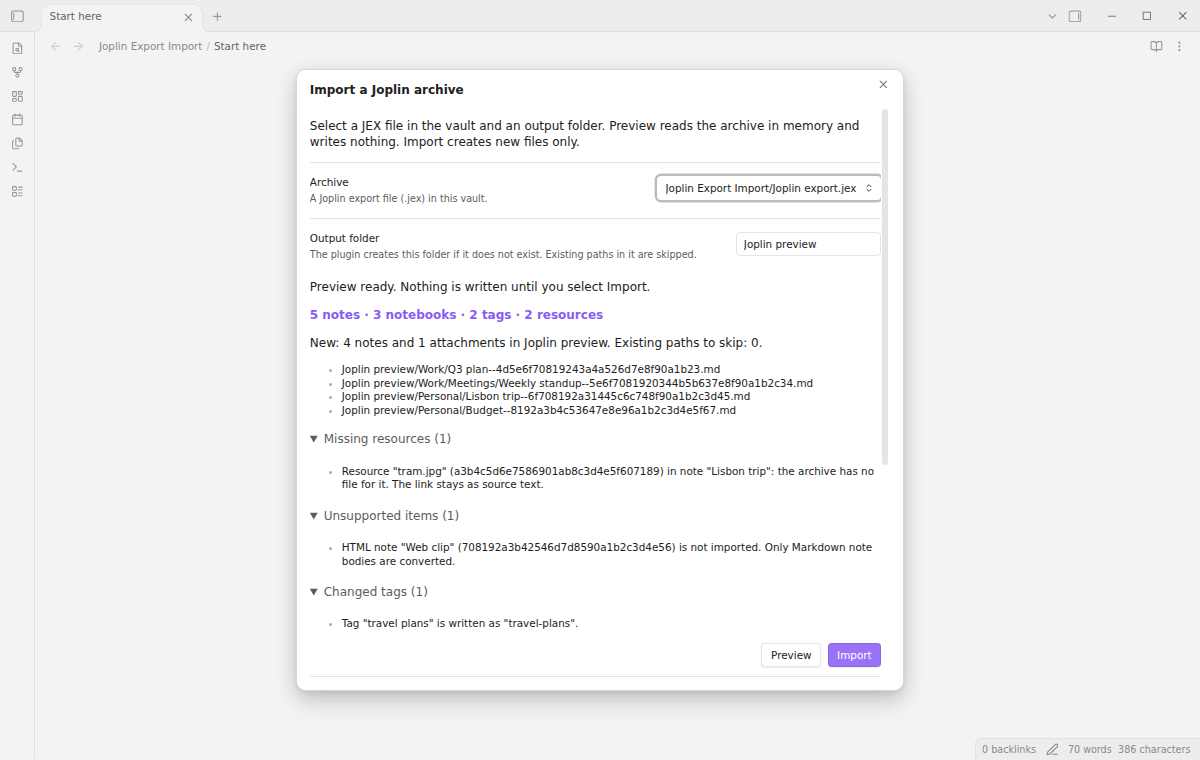
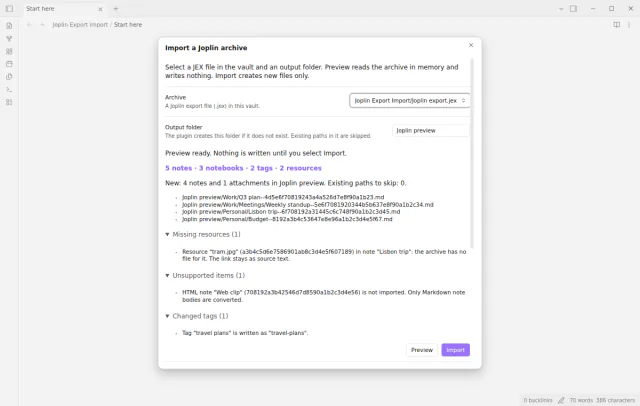

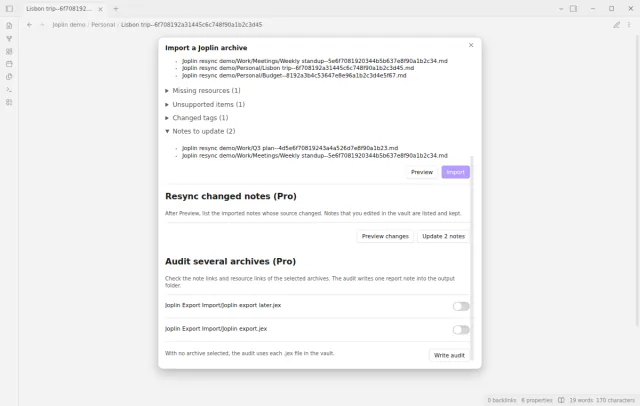
Select a .jex file that is in your vault and an output folder. The preview shows the counts of the archive, of new notes and attachments, and of existing paths to skip. It shows the first output paths and lists missing resources, missing note links, unsupported items, changed tag names and notebook problems. The preview converts the notes in memory and writes nothing. Close the window without Import, and no folder or file is created. Import creates new files only: it checks each output path just before the write and skips a path that exists. With "Write a report note" on, the report gives counts, errors, missing resources and unsupported items.
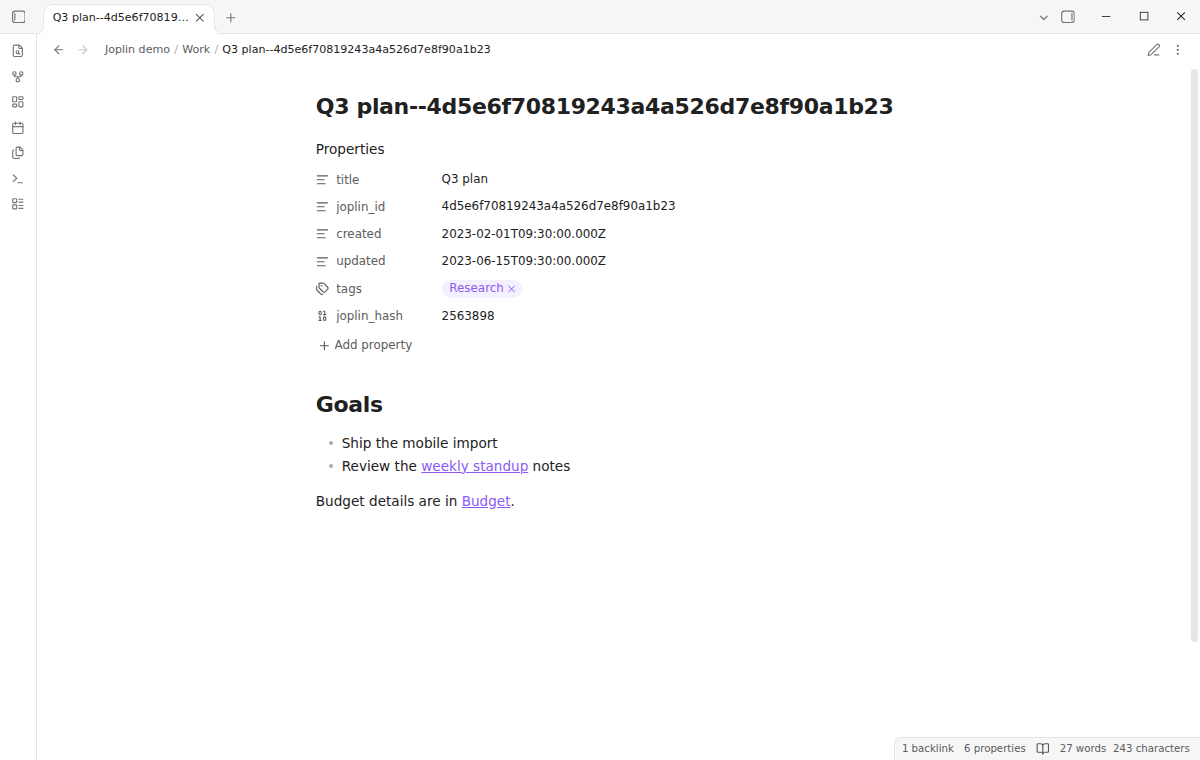
Each notebook becomes a folder, and a sub-notebook a sub-folder. A note in notebook Work with the title Plan becomes Work/Plan-- .md. A long name is cut to 80 characters and 200 UTF-8 bytes, then loses dots and spaces at its end. A reserved Windows name such as CON gets _ after the reserved part. A notebook below level 64 uses the folder of its level-64 parent, and the report names it. With the same note title and notebook path, a later import finds the same file. A Joplin note link such as Other becomes [[ /Work/Other-- |Other]], so the label stays. A heading anchor stays as Joplin wrote it, so the link opens the note but can miss the heading. Links inside fenced code blocks stay as they are. A line such as js does not start a fence.
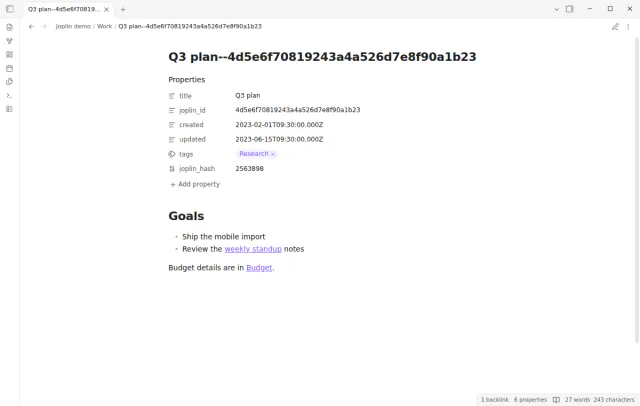
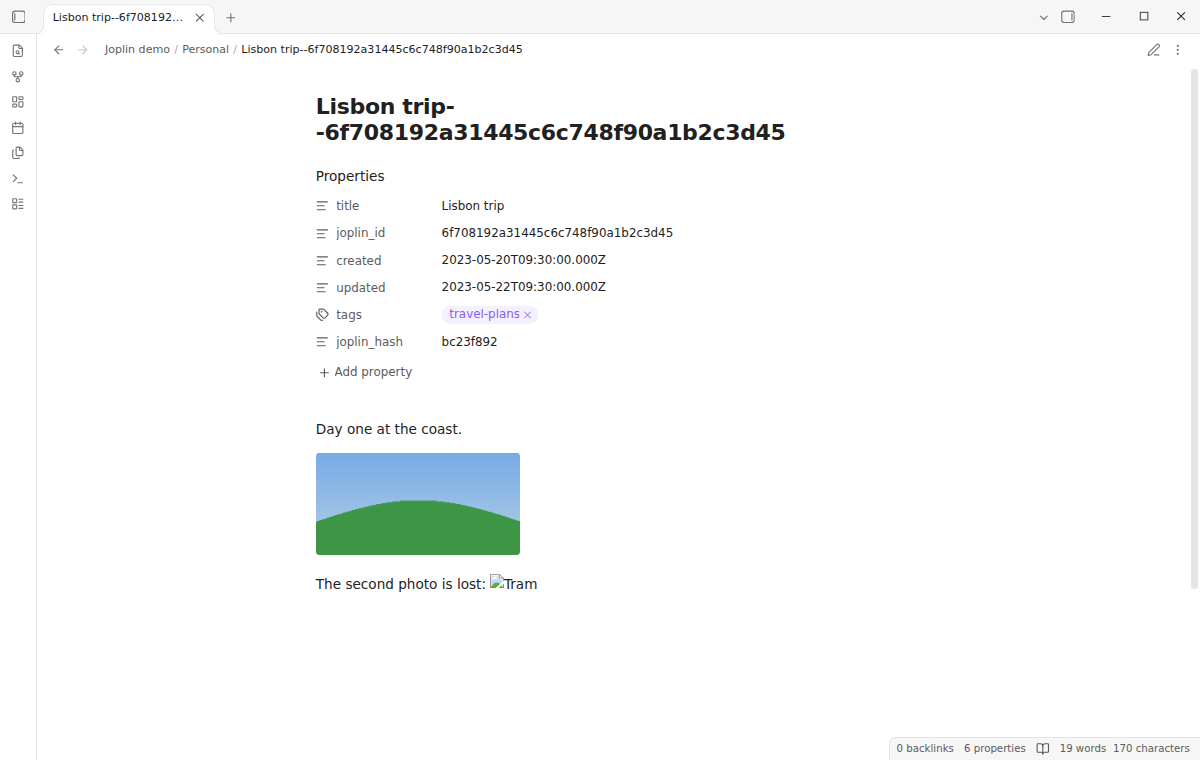
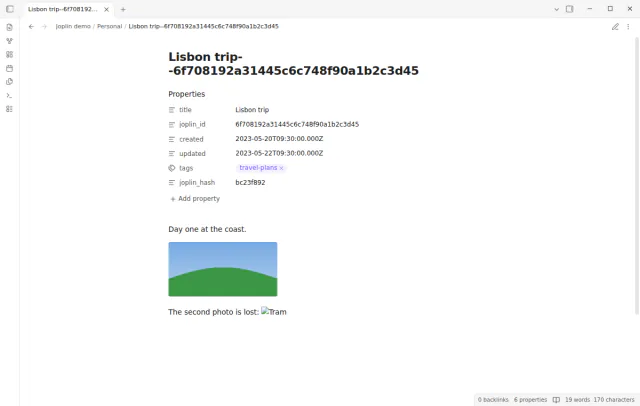
The import copies each resource that has a file to /_resources/ , with an extension when present. An embed such as Photo becomes ![[ |Photo]]. A link to a PDF or another file becomes a plain vault link. An image inside a link, as the web clipper writes it, becomes a Markdown image inside a Markdown link, and a note target becomes the note path. An HTML image tag with a resource ID becomes an embed with its pixel width, if set. When a resource has no file in the archive, the source link or tag stays and the report names it. The other notes import as usual. When a folder cannot be created, the report names it and the import skips its files.
Pro costs $5 a month or $15 one time through GitHub Sponsors. One sponsorship turns on Pro in every plugin that has it.
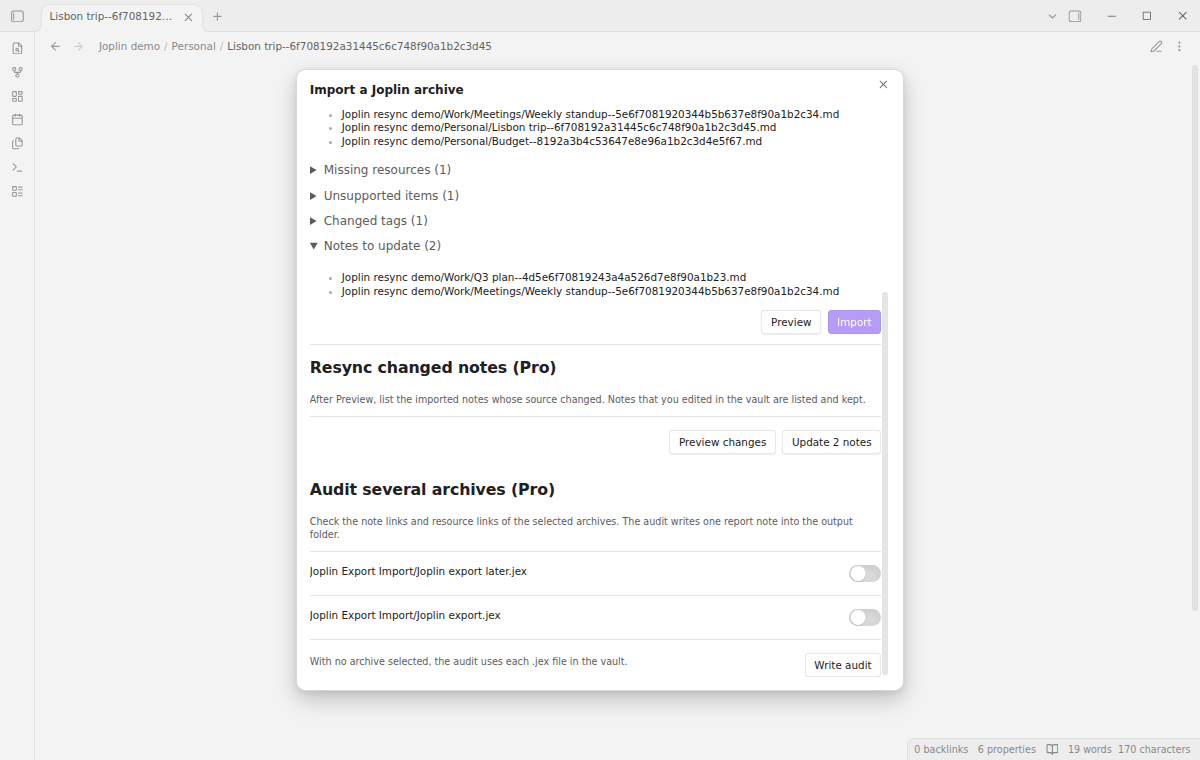
Put a newer .jex file in the vault, select it with the same output folder, select Preview and then "Preview changes". The list shows the imported notes that have a different text in the new archive. A note that you changed in the vault after the import is listed as edited and stays unchanged. Select "Update N notes" to write the changed notes. The plugin uses the joplin_hash property to find notes that you edited. Resync only updates notes at the same output paths. It does not delete or create notes or copy attachments.
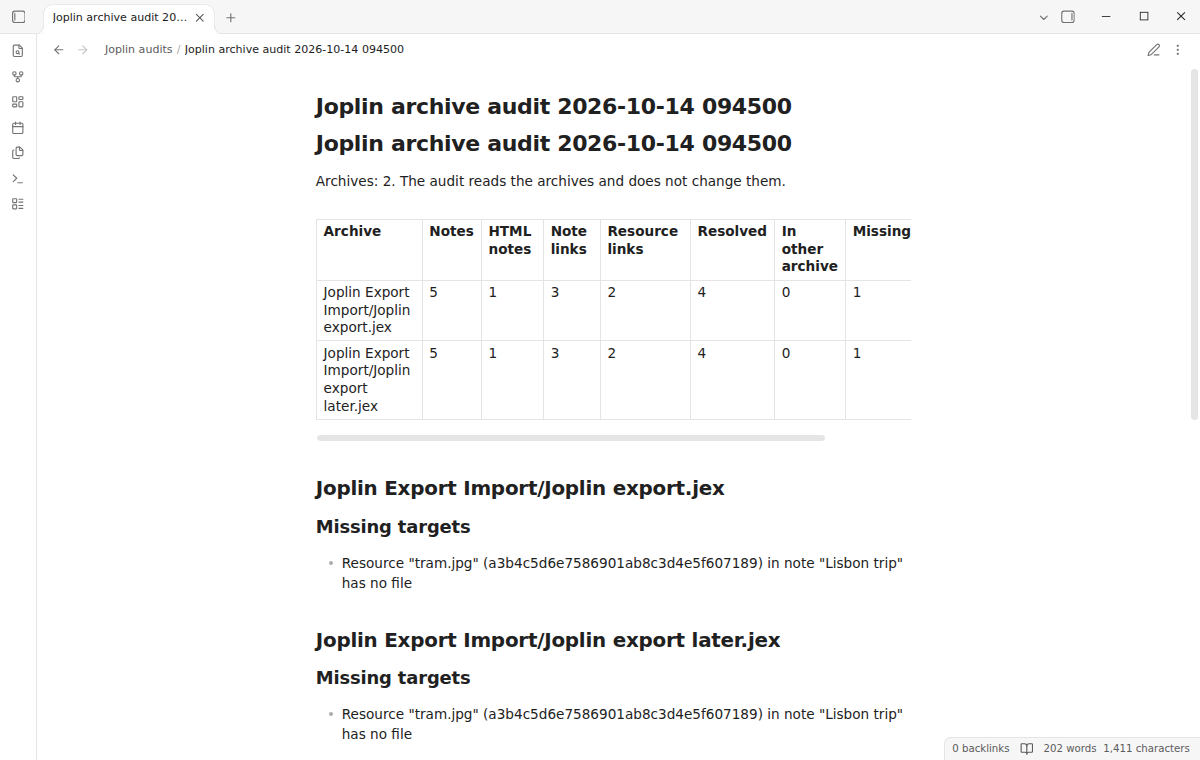
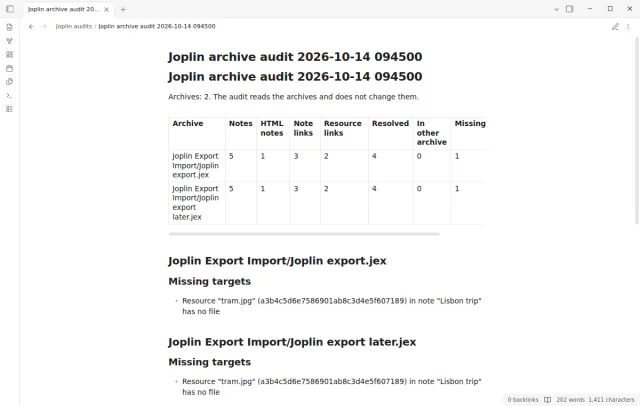
Select two or more .jex files in the import window and select "Write audit". The plugin writes one note into the output folder. It has a table with one row for each archive: notes, HTML notes, note links, resource links, resolved links, links into another selected archive, missing targets and unused resources. Lists below the table name each problem and the notes that are in more than one archive.
needs
steps
In Joplin, select File, Export all, JEX.
Copy the .jex file into your vault.
Run the command Joplin Export Import: Import a Joplin archive, or right-click the .jex file in the file list and select "Import this Joplin archive".
Select the archive and type the output folder. The default is Joplin import.
Select Preview. Read the counts and open the report lists.
If the app can't find a new plugin yet, try again later. Obsidian says a plugin that passes the review shows in the app within 24 hours.
Need a change for your team? I build custom Obsidian plugins and features.
Notes with a Markdown body. Joplin can also keep a note as HTML, for example a web clip. This version does not convert HTML notes; the report lists each one. Encrypted items and note history are not imported. The report lists encrypted items and gives the count of revision items.
Tag names go into the tags property. Obsidian tags cannot have spaces, so a space becomes a hyphen and the report names the change. If the converted tag is empty or contains digits only, it is not written and the report names it.
The limit is 100 MiB for the .jex file. The plugin checks the size before it reads the file. For a larger collection, export a few notebooks per file and import each file into the same output folder.
Unit tests (98 tests) run 38 golden vectors through the reader and converter, and check vault writes, Pro guards, resync, audit, large inputs and an unload during an import. End-to-end tests pass on Obsidian 1.13.4 and 1.14.5, and on 1.14.5 in mobile emulation: 12 tests on each. They check import, links, web clips, attachments, Reading view, Pro actions and reload. Pro tests send no request. We did not test a JEX file from the Joplin app, a real phone or tablet, an archive near the size limit, a live payment or a live GitHub sign in.
The text of this page comes from the README of the plugin, and nobody has reviewed its network use for this site yet. Read the README in the repository for the hosts that the plugin contacts.
Tell me what is broken in Joplin Export Import, or what it should do next.
Joplin Export Import 1.0.3, MIT license
MIT · no telemetry · core features free
Author, date, status and tags print as a readable header when you export a note to PDF.
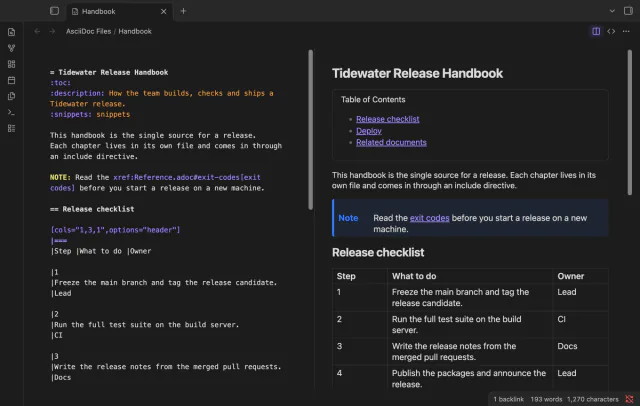
Edit AsciiDoc source and see its preview side by side.
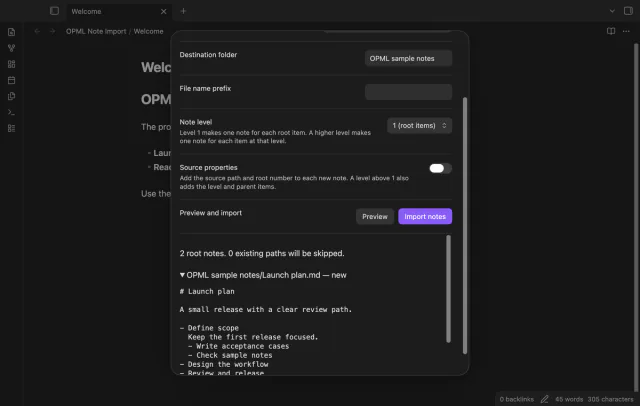
Import OPML roots as notes with nested items in source order.