Obsidian has no Fathom import of its own, and this guide found no Obsidian entry on the Fathom integrations page, as of October 2026. Without a plugin, you copy the summary from the page of a call and paste it into a note. For a sync, use a plugin that reads the Fathom API with your key, or send a Fathom webhook to a receiver.
Updated · 4 ways compared · 20 sources
Background
Fathom joins a call and then makes a transcript, a summary and action items. Its developer FAQ says that API access, with keys and webhooks, is included on all plans. The same FAQ says that summaries from the API and from webhooks are Markdown only.
Demand in the Obsidian community is hard to measure. A forum topic from December 2025 asks whether Obsidian can take notes from a Zoom or Google Meet transcript. It has 3 posts and 0 likes. On 11 October 2026 the community plugin list on GitHub named Fathom in one plugin, TranscriptExporter Sync.
4 ways to do it
Copy the summary from Fathom
Fathom has a Copy Summary button directly above the summary in the view of a recorded call. Its help page says that the button copies and formats the summary, with or without the hyperlinks. Paste the result into a note.
limits
You copy each call by hand, and the help page names the summary only, not the action items or the transcript. This guide did not test how the pasted text looks in Obsidian.
Fathom can send a webhook to a URL of your choice after a meeting. The payload can include the summary, the transcript and the action items. The Zapier page for Fathom lists six triggers, among them New AI Summary, New Action Item and New Transcript. The Fathom release notes say that Zapier is available on all plans since August 2025.
Neither way writes into a vault by itself. Obsidian keeps a vault as a folder on your local file system. So you need a receiver that turns the event into a Markdown file. One example is the community plugin Webhooks Server, which works with a server that you host yourself. This guide did not test a webhook, a Zap or that plugin.
limits
You set up the receiver and the note layout yourself. The Fathom FAQ says a webhook fires once when content is first ready, and not again after a later change.
TranscriptExporter Sync is a community plugin that receives notes from the TranscriptExporter Chrome extensions for Granola, Fathom and Fireflies. Its README says the plugin runs a small HTTP server on your own machine, on 127.0.0.1 and port 27125 by default. The extension in Chrome fetches the notes and delivers them, and notes from Fathom go to a Fathom/ subfolder.
The README says that a file already in your vault is not modified or overwritten. The directory page showed 92 downloads on 11 October 2026.
limits
The directory lists the plugin as desktop only, and it needs the separate Chrome extension, which its site sells as a paid product. This guide did not test the plugin or the extension.
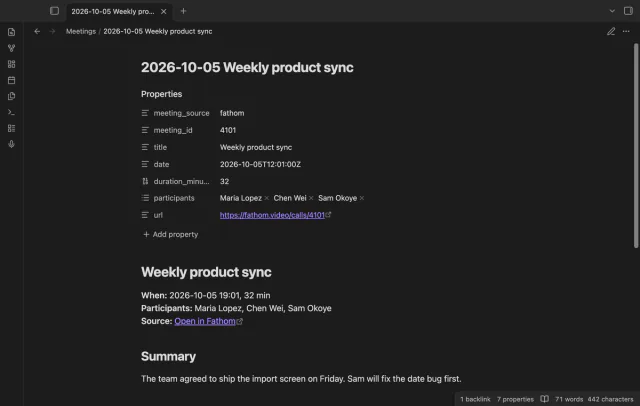
Call Notes Sync is a community plugin that reads the Fathom API from Obsidian with your own API key. It writes one note per meeting, with properties, the summary, the action items as tasks and a link to the recording. A later sync starts 48 hours before the newest meeting it saw, and a note that you delete is not made again.
Summaries and action items are free. The transcript, a note template, a daily note link and filters need Pro, at $5 a month or $15 once on GitHub Sponsors. The key stays in Obsidian secret storage, and Fathom does not make or endorse this plugin.
limits
You start each sync yourself, and a note is written once, so a later change in Fathom does not reach it. The directory lists it for mobile, and its tests run on desktop only, with a stand-in for Fathom.
Install Call Notes Sync from Community plugins and enable it. It needs Obsidian 1.13.4 or later.
In Fathom, open User Settings, go to API Access, and generate an API key. Copy the key.
In Obsidian, open Settings, then Call Notes Sync, and save the key in the Fathom API key field.
Select Check Fathom key. A notice says whether Fathom accepted the key.
Choose the folder and the file name template, or keep the defaults.
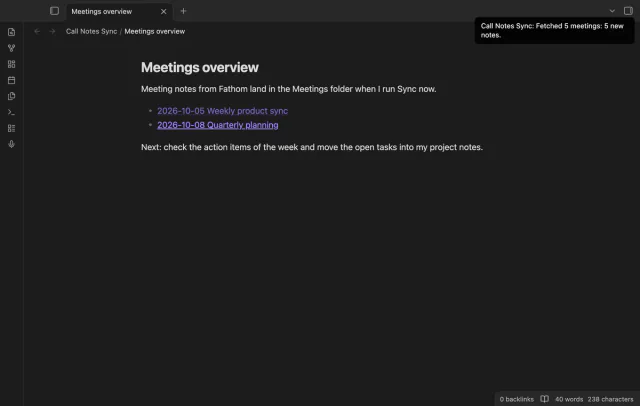
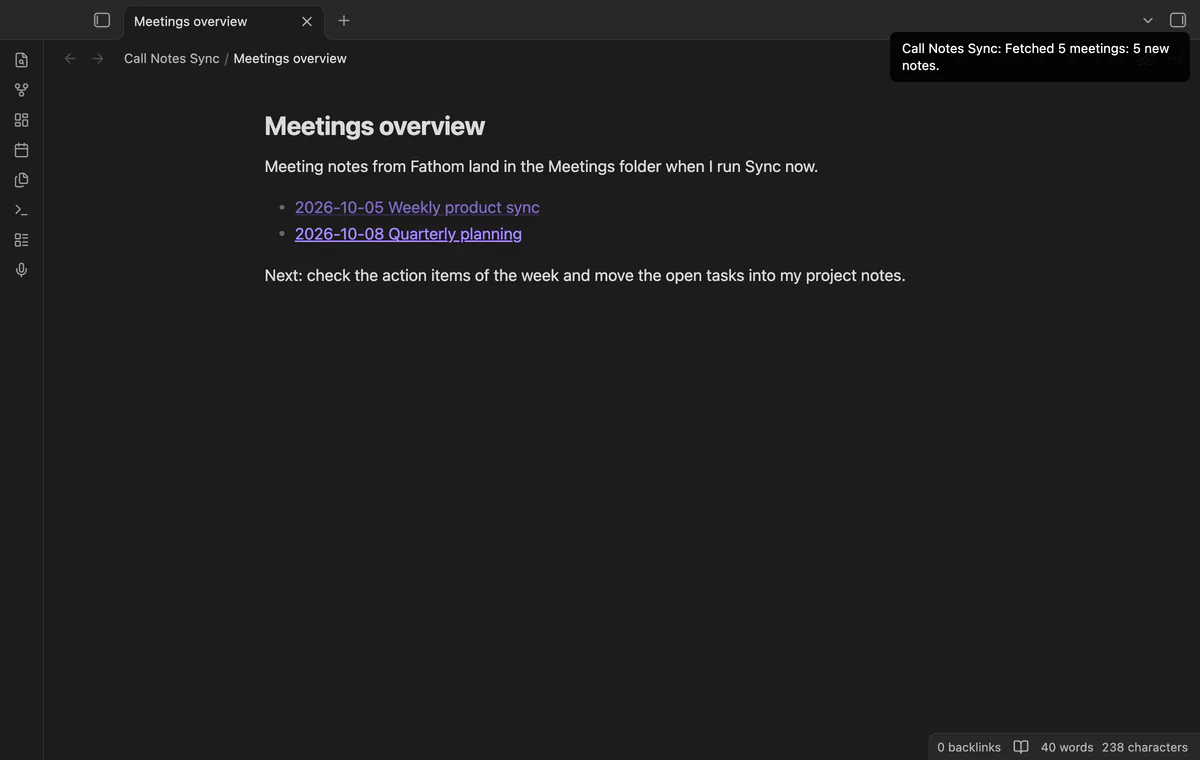
Run Sync now. A notice counts the meetings and the new notes, and the notes are in the folder Meetings.
Common questions
Do I need a paid Fathom plan to use the API?
No, by the Fathom developer FAQ. It says that API access, with keys and webhooks, is included on all plans. You generate a key in User Settings, under API Access.
Which meetings can a Fathom API key read?
The Fathom quickstart says a key is scoped to the user who creates it. The key reads meetings that you recorded and meetings shared with you or your team. It does not give access to the private meetings of other users.
How many requests does the Fathom API allow?
The API overview gives 60 calls in a 60 second window for an account. A request for the meetings list with a summary or transcript is a heavy request, with 30 calls in 60 seconds. Fathom says it may lower that to 5 in busy periods, and a limited call returns HTTP 429. Call Notes Sync waits 2.1 seconds between pages, and after HTTP 429 it waits and retries twice.
Which summary does the Fathom API return?
The Fathom developer FAQ says the API returns the default summary template of your account. It says that a change of the template for one call in the Fathom app does not change the API answer. So a plugin or a script that reads the API gets that default summary, as Markdown.
Obsidian has no Hypothesis import of its own, and the older Hypothes.is plugin is no longer available in the directory, as of October 2026. Without a plugin, Hypothesis exports the annotations of one document to a text, CSV, HTML or JSON file. For a sync, use the free Annotation Inbox, a free Templater script, or the paid Readwise service.
The Tasks plugin writes the done date as plain text, and its docs say a date can't be a link, as of October 2026. A Tasks or Dataview query in the daily note lists what you finished, with no link and no plugin to buy. For a real link, use the free Checkbox Time Tracker in notes you mark, or Task Date Links with Tasks done dates.