Task Format Bridge
Convert supported task fields between emoji and Dataview syntax after reviewing the changes.
As of October 2026, Tasks supports emoji and Dataview task formats. Changing its format setting does not migrate existing tasks. Edit task fields manually or preview supported changes with Task Format Bridge.
Task metadata can use symbols or bracketed text fields. A format change needs both suitable note text and the matching Tasks setting if you use Tasks.
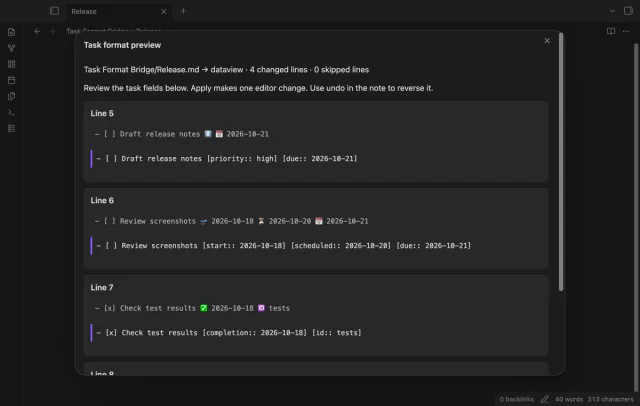
For a due date, write a field such as [due:: 2026-10-21] on the task line. Tasks also reads bracketed date fields in parentheses.
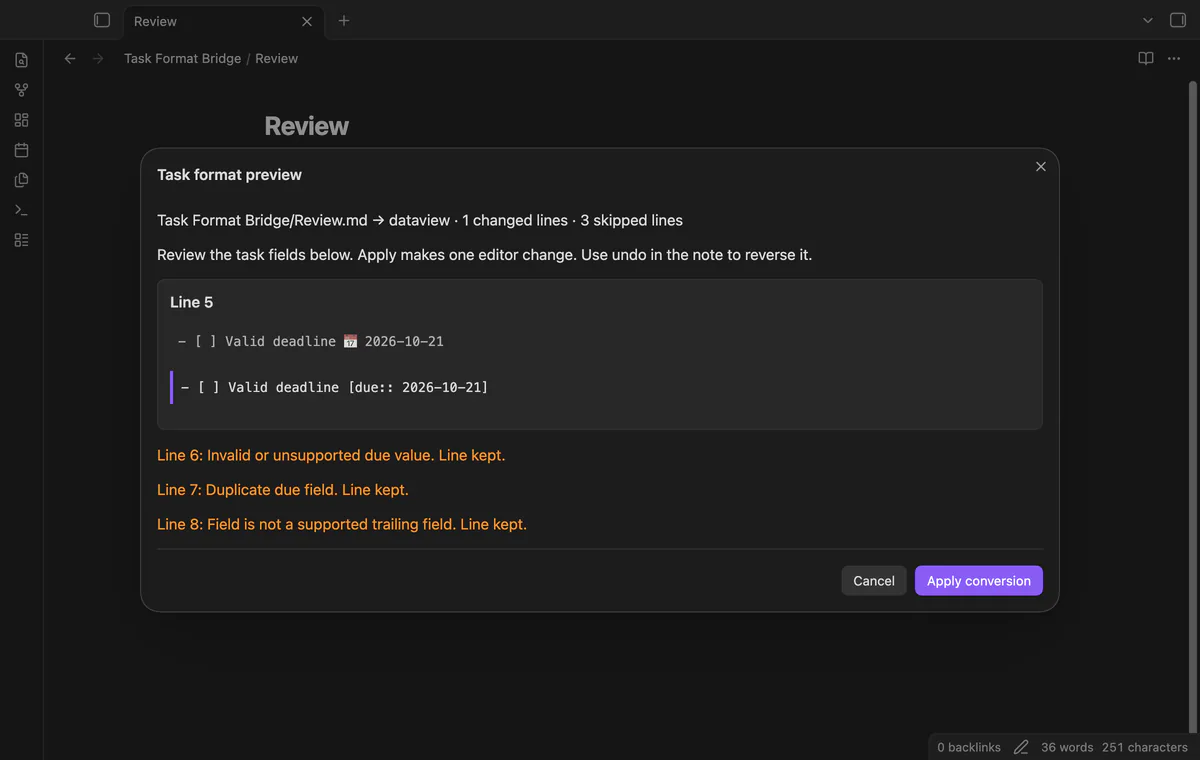
Run a free preview for the active note, inspect replacements and warnings, then apply the supported changes. Pro can identify convertible lines across a folder. Tested on desktop only.
MIT · no telemetry · core features free
Open the note you want to convert.
Run Preview note as Dataview fields or Preview note as emoji fields.
Read the replacements and skipped-line warnings.
Select Apply conversion.
Check the format setting separately if you use Tasks.
Timed dates fall outside this converter. The line stays unchanged when its field value is unsupported. Review it manually.
No. The converter keeps the task prefix, including the checkbox status. It changes only supported trailing fields.
The plugin applies the note changes in one editor transaction. Use editor undo in that note to reverse the conversion.
 That's every step, start to finish.
You're officially a regular.
Obsidian rewards people who share. NoteMods is just me and a lot of coffee. If this guide saved you a fight with the syntax, buy me a cup.
That's visit . Regulars are the reason I keep NoteMods running. If it's part of your routine now, a coffee says thanks better than anything.
Convert supported task fields between emoji and Dataview syntax after reviewing the changes.