Paste Link Titles · Obsidian plugin documentation
Paste Link Titles documentation
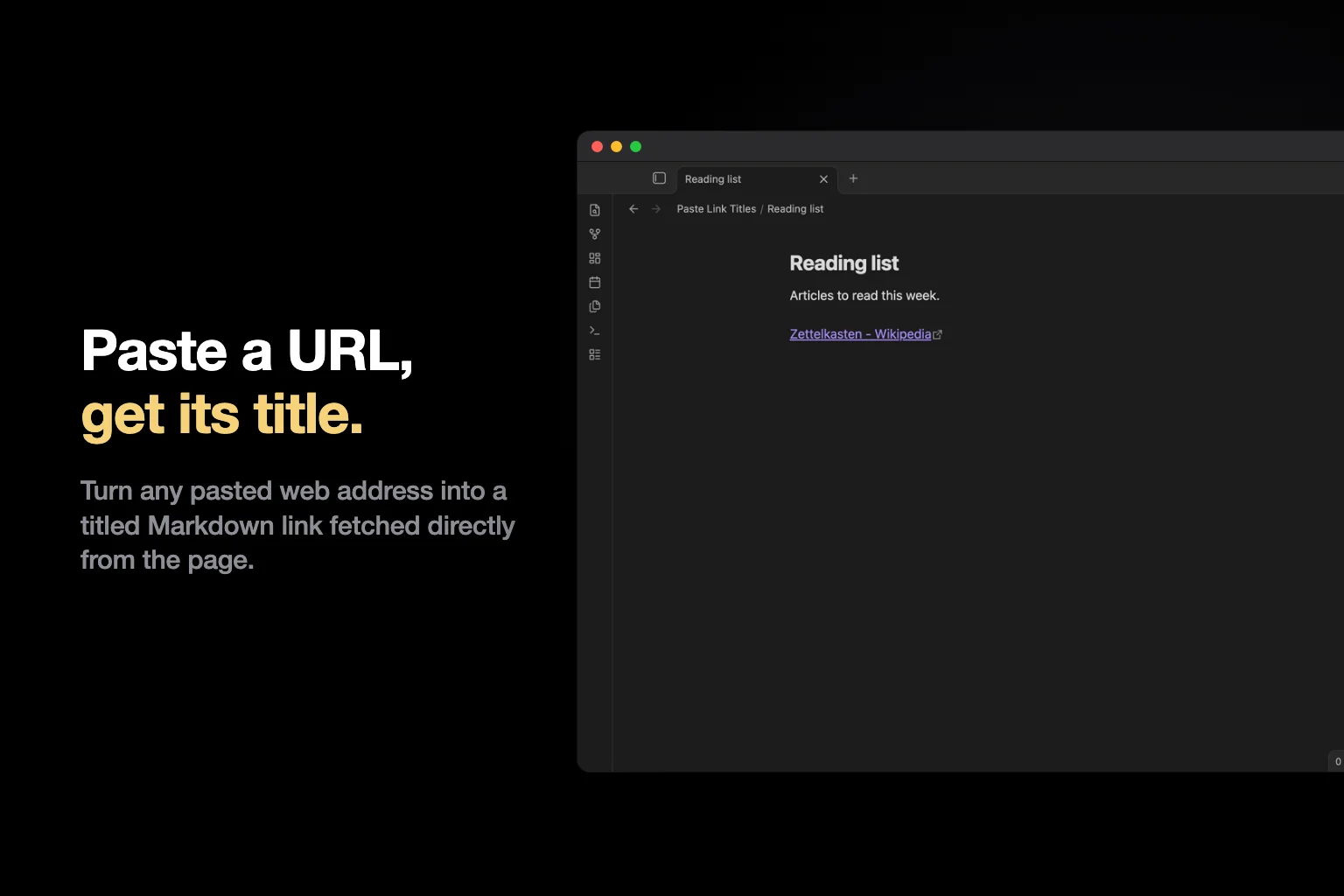
Paste a URL and get a Markdown link with the page title, fetched from the page itself.
Paste Link Titles reads the title from the page that the link points to. It uses no link preview service and no other third party. Code blocks, selections and plain pastes stay as they are.
Version 1.0.0. Requires Obsidian 1.13.4 or later. Works on desktop and mobile.
1 Installation
When Paste Link Titles is listed in the community directory, open Settings, then Community plugins, then Browse, and search for "Paste Link Titles". Select Install, then Enable.
To install by hand, download main.js, manifest.json and styles.css from the latest release. Put the three files in <vault>/.obsidian/plugins/paste-link-titles/. Then reload Obsidian and turn on Paste Link Titles.
The plugin works on desktop and on mobile.
2 Getting started
Quick start
- Turn on Paste Link Titles.
- Copy a web address in your browser.
- Paste it into a note. The title replaces the URL after the page answers.
- Press undo if you want the plain URL back.
Commands
The command palette has five commands. Two are free.
- Add a title to the URL at the caret.
- Add titles to all bare links in this note.
- Refresh link titles in this note (Pro).
- Add titles to bare links in the folder of this note (Pro).
- Write page details to the properties of this note (Pro).
Give the first command a hotkey to use it from Vim normal mode.
What counts as a URL
A paste counts when it holds only URLs that start with http:// or https://, plus spaces and line breaks. A sentence with a URL in it pastes as normal text. The note command finds URLs in running text and leaves out the full stop or comma after them.
3 Features
Paste a URL, get a titled link
Paste a bare URL. The plain URL shows at once. When the page answers, it becomes [Page title](url). Press undo once to get the plain URL back. Brackets in a title are escaped, so the link never breaks.
Many URLs in one paste
Paste URLs on separate lines or with spaces between them. Each URL gets its own title. The plugin sends at most four requests at the same time. A repeated URL needs only one request.
Code and selections stay as they are
A paste in a code block, in inline code or in the properties at the top of a note stays plain. A paste over selected text stays with Obsidian, which makes [selection](url) as usual. Press Ctrl+Shift+V, or Cmd+Shift+V on a Mac, to paste the plain URL anywhere.
Direct fetch with a safe fallback
The plugin asks the page itself with the request function of Obsidian. It reads og:title, then twitter:title, then the title tag, and decodes characters such as &. When the page fails, takes more than 5 seconds or shows a bot check such as "Just a moment", the link gets the host name.
Two commands for hotkeys and Vim users
"Add a title to the URL at the caret" changes the bare URL where the text cursor is. "Add titles to all bare links in this note" counts the bare URLs first and asks before it changes the note. Links, code, autolinks and front matter stay as they are.
Skip list for private hosts
Hosts on the skip list, private network addresses and hosts without a dot never get a request. The default list adds local domains such as *.local and *.internal. Add intranet hosts on new lines. Obsidian follows redirects and hides the final address. A page that names a skipped or private host as its address gives no title. The redirected request still goes out.
Pro features
Pro adds title rules for each site, link formats, folder batches, a title refresh and page details as properties. The section "Payment, account and network" gives the price and the sign in.
- Title rules. Remove " - YouTube" or other parts with a regular expression for each host.
- Link formats. Use a reference link, a link with a description line, or your own format with
{title},{site},{url},{date}and{description}. - Folder batch. Count the bare URLs in the folder of the open note, confirm, and get a report note. No request goes out before you confirm.
- Title refresh. Fetch the title again for links whose text is the URL or the host name.
- Page details as properties. Write the title, site name and description of a page into the properties of the open note.
4 Commands
Open the command palette and type the plugin name to see these commands. You can give each one a hotkey in Settings, Hotkeys.
| Command | Command id |
|---|---|
| Add a title to the URL at the caret | paste-link-titles:title-at-cursor |
| Add titles to all bare links in this note | paste-link-titles:titles-in-note |
| Refresh link titles in this note | paste-link-titles:refresh-titles |
| Add titles to bare links in the folder of this note | paste-link-titles:titles-in-folder |
| Write page details to the properties of this note | paste-link-titles:page-properties |
5 Settings
Paste
- Add titles when you paste a URL. On by default. Turn it off to keep the commands only.
- Time limit in seconds. 5 by default. After this time the link gets the host name.
- Hosts to skip. One rule on each line. Use a host,
*.domainfor a domain and its subdomains, or an address start such as192.168..
Pro
- Title rules. One rule on each line, written as host | find | replace. Use
*as the host for every site. - Link format. Inline link, reference link, link and description line, or custom format.
- Custom format. Type
\nfor a new line.
A free user can try the Pro settings. A notice explains Pro and nothing is saved.
6 Privacy, payment and network
The core features are free. Pro features need a GitHub Sponsors sponsorship of theluckystrike: $5 a month or more, or $15 once. A total payment of $15 meets the payment requirement for Pro without further payment. Sign-in and the checks below still apply. Your notes stay readable and editable with or without Pro.
One payment turns on Pro in every NoteMods plugin.
GitHub handles the payment. Sponsor at https://github.com/sponsors/theluckystrike/sponsorships?tier_id=666162&frequency=one-time&metadata_source=paste-link-titles. You need no account for the free features. Pro needs the GitHub account that sponsors.
Page titles need the network. A paste of a URL or a title command sends one GET request to that URL with the request function of Obsidian. The request goes to the host of the URL, and to a page that it redirects to. The plugin reads at most the first 512 KB. It sends no note content, file names or other vault data, and no data to any other service. The host can see your IP address and the URL, the same as when you open the link. Hosts on the skip list, private network addresses and hosts without a dot get no request. Turn off the paste setting to send requests only from the commands. The plugin declares this request as network_user_hosts: pasted-page-titles.
Until you select "Sign in with GitHub" in the settings, Paste Link Titles sends nothing to GitHub. Sign in uses the GitHub device flow. Paste Link Titles sends its public client ID and the scope read:user to https://github.com/login/device/code and shows you a code. While you enter the code at https://github.com/login/device, it asks https://github.com/login/oauth/access_token every few seconds to check the sign-in status. The scope permits profile reads only. GitHub needs this access to show the sponsorship tier. It grants no repository scope and no write access.
After sign in, Paste Link Titles sends one query to https://api.github.com/graphql. It checks if the signed-in account sponsors theluckystrike. It asks for the tier and the total payment to theluckystrike. The plugin reuses a successful check for 7 days. Failed checks can retry after 6 hours. Select Refresh to request an earlier check. It sends no note content, file names or other vault data, and it has no telemetry.
After a successful check, Pro can work offline for up to 14 days. Sign out or a negative sponsorship answer turns Pro off. The plugin stores the GitHub token through the secret storage API of Obsidian. It does not put the token in its saved settings or its local sponsorship data. The local storage of this device keeps your GitHub login, the tier and the time of the last check. Sign out clears the token. You can also revoke the access in your GitHub settings, under Applications.
7 Questions and answers
Does a link preview service see my links?
No. The plugin sends the request to the page of the URL and to no other server. The page sees the request, the same as when you open the link in a browser.
Why does a link show the host name?
The page did not give a usable title. It failed, took longer than the time limit, sent a file that is not a web page, or showed a bot check. Some shops and social sites block automated requests. Run the Pro title refresh later.
Does it work with other paste plugins?
It stays out of a paste over a selection and out of a paste that another plugin handled.
8 Support
Plugin page: paste-link-titles.
Report bugs and ask for features in the GitHub issues of this repository. Add your Obsidian version and the URL that gave a wrong title.
9 License
MIT