How to get one row per list item in Obsidian Bases
A core base can't do it, as of October 2026. The help page says the table shows a row for each file, so a list property stays in one cell. Dataview's FLATTEN command gives a row for each item outside Bases, and the Flatten Table plugin does it inside a base.
Updated · 3 ways compared · 7 sources
Background
The request is small and specific. A forum topic from 2025-09-08 asks for a Dataview FLATTEN solution in Bases, and it has 10 likes and 3 posts.
The poster keeps a list of roles in each person note, with dates for every role. The goal is one table row for each role. In Bases, the post says, that would take a stub note for every role.
3 ways to do it
One note for each item
Split the list. Each item becomes its own small note, with the item's fields as properties and a link back to the parent note. The base then has one row for each item, because it has one row for each file.
Sort, group, filter and column summaries of the core table then work on those rows.
limits
You create and keep one file for each item. The poster who asked called this much less workable in a large vault.
Dataview is a community plugin with its own query language. Its docs say FLATTEN takes an array in every row and yields one result row for each entry.
You write the query in a dataview code block in a note, and the table shows there. The docs example flattens an authors field to give one row for each author.
limits
The result is a Dataview table in a note, not a view of a base, so the base toolbar and its filters don't apply. You write and keep the query text yourself.
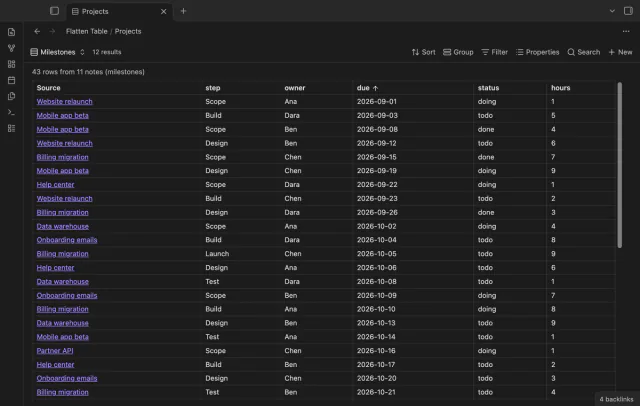
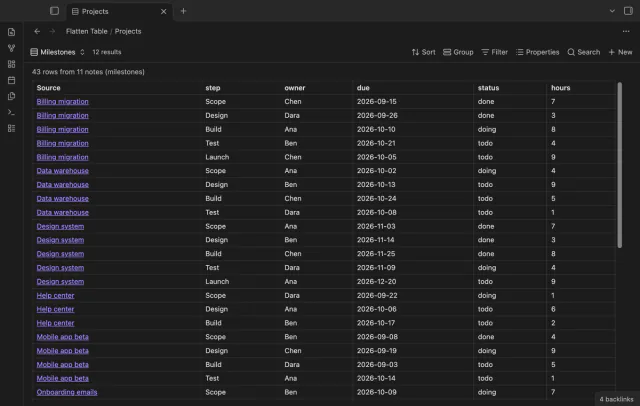
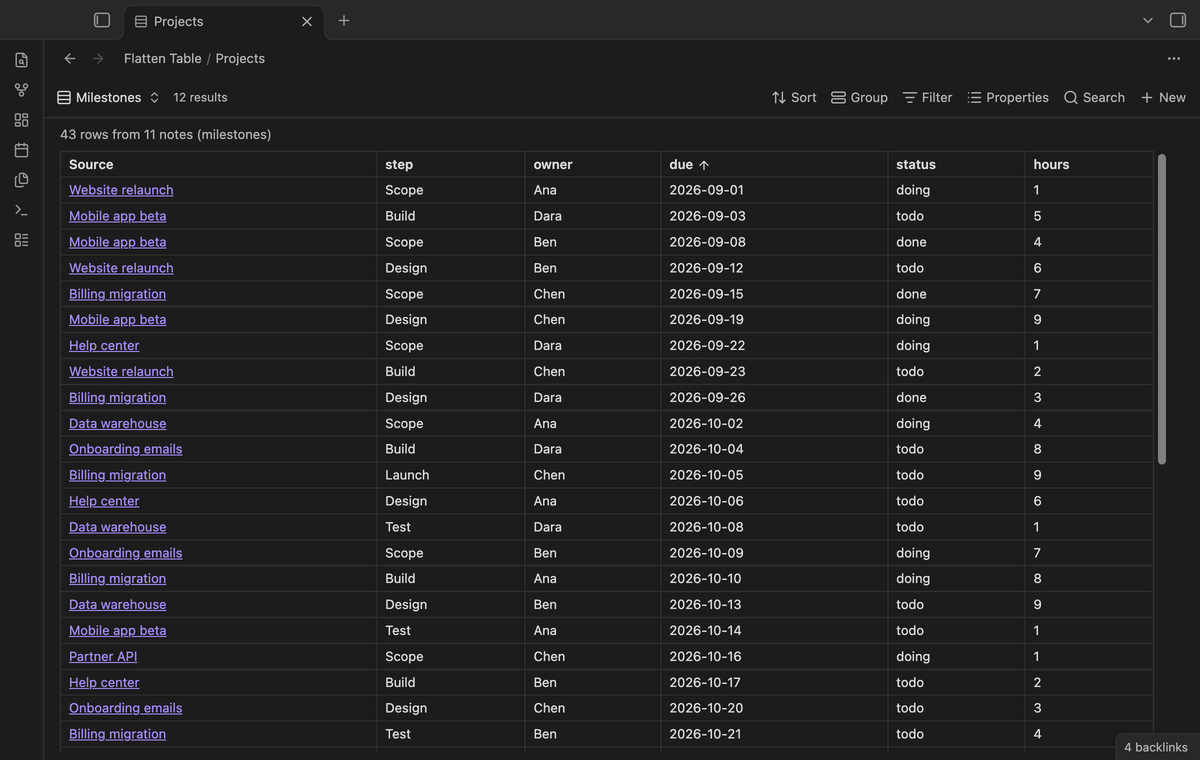
Flatten Table adds a view type named Flatten table. Pick a list property in the view options, and each item becomes one row with a Source column that links to its note.
When the items are objects, each key is a column. Click a column header to sort. Numbers sort as numbers, and dates in the form YYYY-MM-DD sort in date order.
limits
The free version flattens the lists of up to 50 notes that have items, and the table says how many it left out. Row filters, groups, export and the end of the 50-note limit need Pro.
Write a list of objects in the properties of your notes. Use source mode, because the Properties panel can't edit such a list.
Install Flatten Table from Community plugins and enable it. Check that the core plugin Bases is on.
Create a base, or open one. Set its filters so that it selects these notes, for example a folder or a tag.
Select the view menu in the base toolbar and add a view of the type Flatten table.
Open the view options. In List property, pick the property that holds the list.
When more than 50 notes have items, the table says how many it left out. Pro removes that limit.
Common questions
Can a Bases formula split a list into rows?
No. The help page lists functions for lists, such as map, filter, flat and join. They change the list inside one cell. The table still shows one row for each file.
Can I edit a list of objects in the Properties panel?
Not in core, as of October 2026. The help page puts nested properties under Not supported and recommends source mode. The community plugin Nested Properties says in its README that it shows nested objects and arrays as an editable tree in that panel.
What does Flatten Table show for a note with an empty list?
Nothing, by default. A note where the property is missing or empty gives no row. Turn on Keep notes without items to get one empty row for such a note. A property that holds one value, not a list, gives one row.
The New button has no template setting, as of October 2026. It creates a file in the current view, and forum posts confirm it writes the filter values and follows a folder filter. For your headings and extra properties, you insert a template afterwards or let a plugin do it.
As of October 2026, Bases has no graph layout of its own, and its help page lists table, list, cards, Kanban and map. At least three community plugins add a graph of a base. Two of them, Base Graph and Graph Explorer Base View, are free.
The core Cards layout can't draw a PDF page, as of October 2026. Its help page lists a link to a local attachment, an external URL and a hex color as cover values. A forum poster reported in July 2025 that only PNG and JPG scans show as covers.