How to convert task fields between emoji and Dataview syntax
As of October 2026, Tasks supports emoji and Dataview task formats.
As of October 2026, core search can find the lines that contain one task ID, but it does not compare IDs across the vault. A plugin audit can list duplicate IDs, missing targets, self references and dependency cycles with their source lines.
Task ID Audit has Pro, and $15 one time turns it on in all 129 plugins.
The Tasks plugin documents task dependencies with an ID field and a field for the IDs a task depends on. A copied task template can repeat an ID. A renamed ID can leave a dependency that points at nothing.
The core Search plugin has the operators task:, task-todo: and task-done:. Each finds matches inside task blocks, for example task:release_1.
A search for one ID shows every task line that contains it. Two tasks that define the same ID mean the ID is used twice.
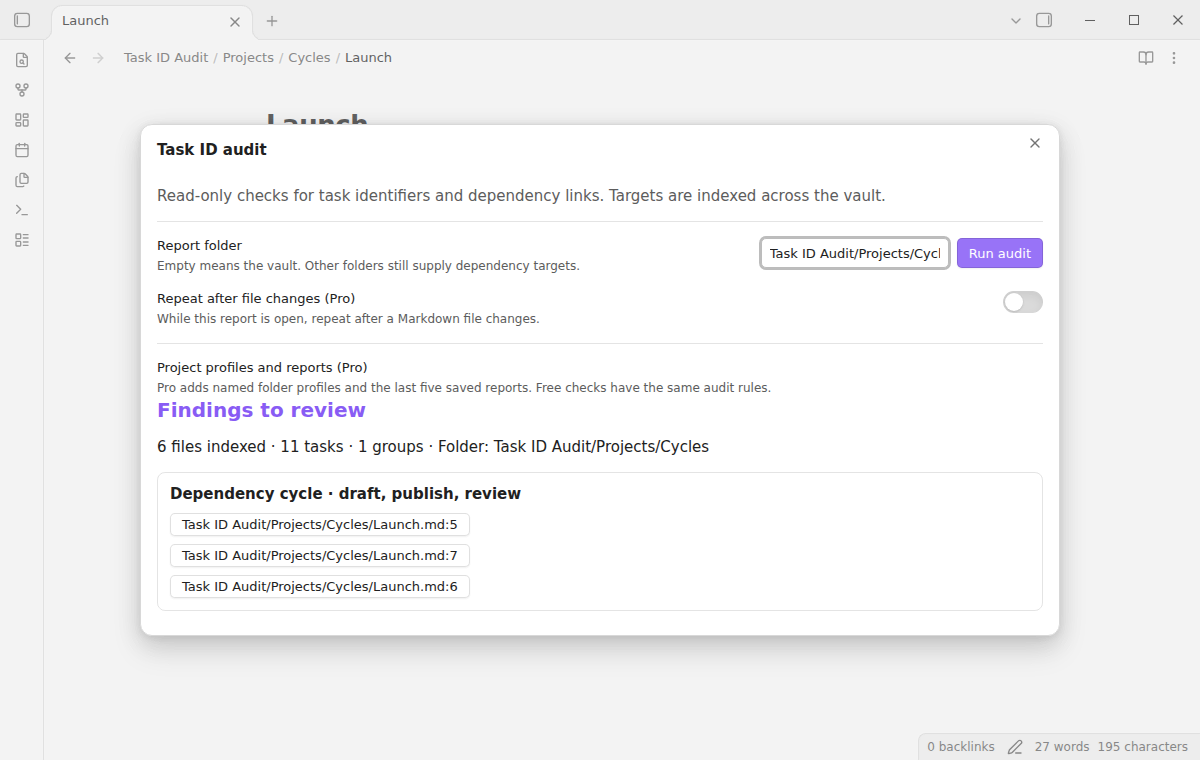
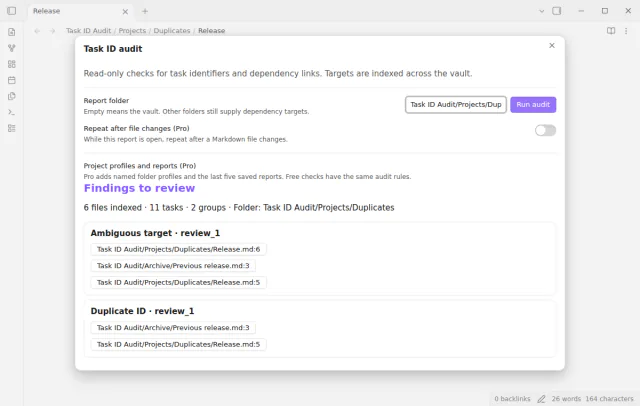
Task ID Audit reads the Tasks emoji ID and dependency fields on ordinary checkbox task lines. The report lists duplicate IDs, missing targets, ambiguous targets, self references and cycles with a path and line number.
Select a path and line button to open the note at that line. The audit reads task text and does not change notes.
MIT · no telemetry · core features free
Open Settings, then Community plugins, and turn off restricted mode.
Select Browse, search for Task ID Audit, then select Install and Enable. It needs Obsidian 1.13.4 or later.
Open the command palette and run Task ID Audit: Open audit.
Leave Report folder empty to audit the vault, or enter a folder such as Projects. Then select Run audit.
Review the duplicate and ambiguous groups first, then the cycles. Select a path and line button to open a task.
The dependency points to an ID that two or more tasks use. The report then shows an ambiguous target group and the duplicate group. Cycle analysis does not choose between those targets.
Yes. Enter the folder in Report folder before you select Run audit. The target index still includes Markdown notes outside that folder, so a dependency can resolve to a completed task in an archive folder.
Task ID Audit reads only ordinary checkbox task lines. Callout tasks, Dataview ID fields, malformed fields and ID fields outside task lines go under Skipped input. YAML frontmatter, fenced code, inline code and HTML comments supply no tasks.
 That's every step, start to finish.
This guide uses Task ID Audit. Pro adds "Save project profiles and reports" and "Repeat after file changes". One payment of $15 turns on Pro in 129 plugins.
This guide uses Task ID Audit. Pro adds "Save project profiles and reports" and "Repeat after file changes". One payment of $15 turns on Pro in 129 plugins.
Audit task IDs and dependencies in Markdown notes, with a source line for each problem.