How to show checklist tasks in Obsidian Bases
Bases can't list the checklist tasks inside your notes on its own, as of October 2026.
As of October 2026, core Obsidian supports Markdown checkboxes; Tasks adds date, priority and recurrence fields. Keep an emoji key, use Tasks' text-based format, or add Task Field Labels for rendered English labels. The adapter changes supported field text without rewriting the task source.
A report with start, scheduled and due dates asks you to distinguish several symbols on one line. Tasks documents those symbols and also supports bracketed text fields. Choose whether you want to change the source format or only the rendered display.
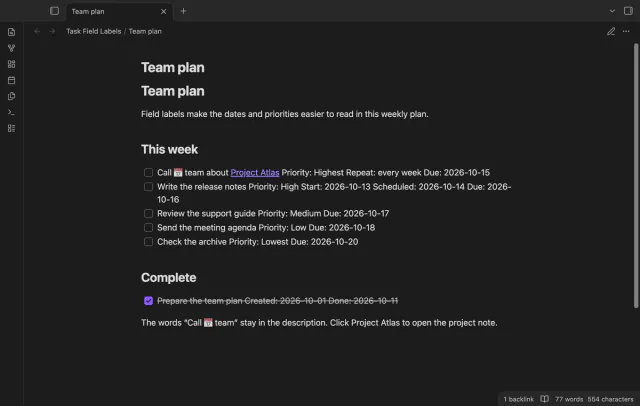
Use the Tasks format reference as a key for its date, priority and recurrence symbols. That keeps the current task syntax. Core Obsidian lets you toggle a Markdown task checkbox in Reading view.
Select Dataview in the Tasks task-format setting, then write fields such as [due:: 2023-04-16] or [priority:: high]. This gives fields readable names in the source. Tasks describes its Dataview compatibility as partial, so read that format's limits before changing your notes.
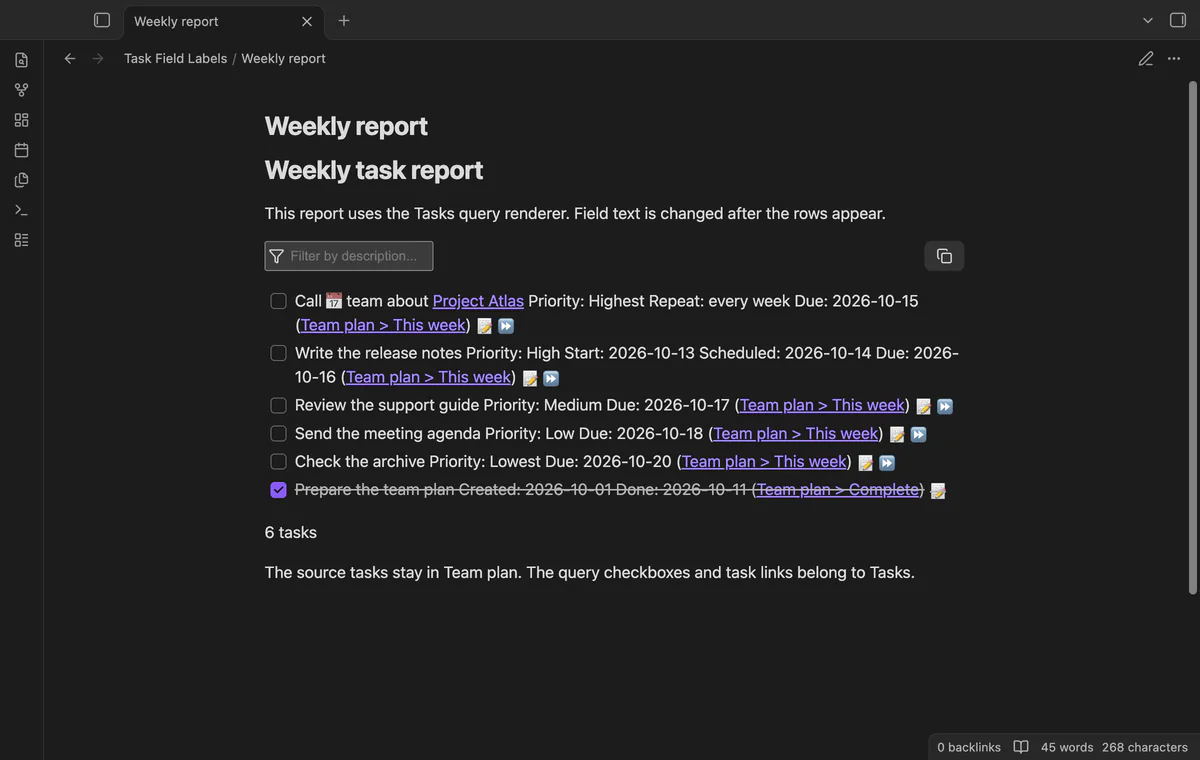
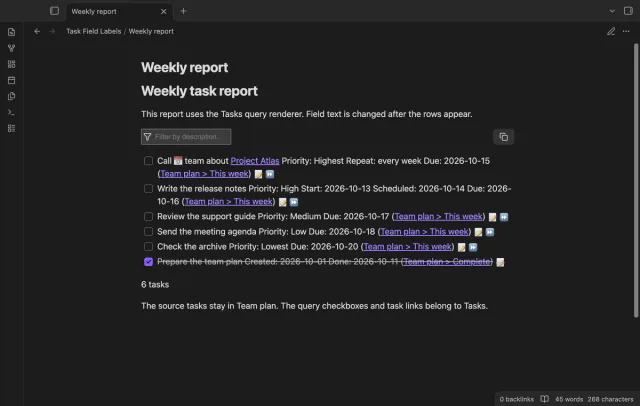
Keep your Tasks emoji source and show words such as Due, Priority and Repeat in rendered fields. Inline tasks get labels in Reading view; query reports get them in Reading view and Live Preview. The adapter keeps the Tasks controls attached to their field elements.
MIT · no telemetry · core features free
Install and enable Tasks and Task Field Labels.
Keep your task fields in the Tasks emoji format.
Open an inline task note in Reading view or a Tasks query report.
Check that Show field labels is on in the plugin settings.
Use Tasks to edit dates and complete tasks; the source keeps its icons.
Tasks supports bracketed Dataview fields with names such as due and priority in the source. Read its format limits before switching. A format change and a rendered label are different choices.
With Pro, save named display presets and place the reports in folders with matching rules. Rules apply to the report path. They don't choose a different preset from each row's source path.
 That's every step, start to finish.
You're officially a regular.
Obsidian rewards people who share. NoteMods is just me and a lot of coffee. If this guide saved you a fight with the syntax, buy me a cup.
That's visit . Regulars are the reason I keep NoteMods running. If it's part of your routine now, a coffee says thanks better than anything.
Read Tasks dates, priorities and recurrence as text.