How to show a GitHub discussion beside your Obsidian notes
As of October 2026, you can put a normal Markdown link to a GitHub discussion in your Obsidian note.
As of October 2026, Obsidian can store an external issue link and text you paste into a Markdown note. Enterprise Issue Cards adds authenticated issue reads from a configured root HTTPS GitHub Enterprise Server. The card shows plain text and keeps a local cached copy with its fetch time.
A release plan may need the issue description beside its next actions. A link leaves the server copy in the browser, while pasted text creates a manual snapshot. A cached card also creates a local copy, so consider where your vault backups and sync carry private issue text.
Use Obsidian's external-link syntax to name an issue and link to its HTTPS address. For example, put the label and URL in the usual bracket-and-parenthesis form. This leaves the issue details on the server until you open the link.
If your company permits a local copy, paste the relevant issue text into a Markdown note and keep its URL nearby. Add your own capture date so you can distinguish that snapshot from current server information.
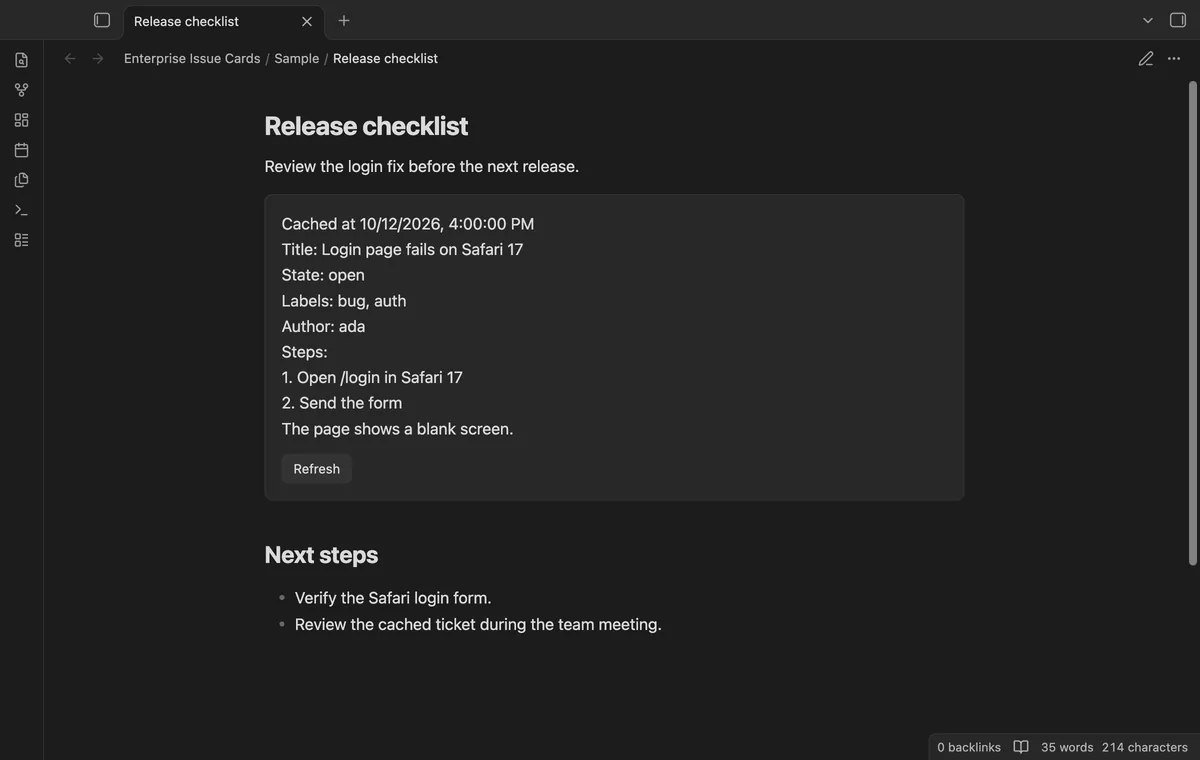
Save an approved read token for your root HTTPS Enterprise host, then place an issue URL in a ticket block. An uncached card reads the issue API. A cached card shows title, state, labels, author and body with the fetch time.
Select Refresh for a current copy. The plugin sends the server token and issue identifiers to that server, without surrounding note text or local paths.
MIT · no telemetry · core features free
Install Enterprise Issue Cards from Community plugins and enable it.
Set your root HTTPS Enterprise host in the plugin settings without an API path.
Paste a company-approved read token and select Save token.
Create a fenced ticket block with the issue URL on its first nonempty line.
Open Reading view to fetch a missing card, or read its cached fields.
Select Refresh when you need an updated server copy.
Check whether your company permits a local issue copy and which backups include plugin data. Cards store cached titles and bodies in data.json. The server token uses Obsidian secret storage instead.
No, the primary Enterprise server is a free feature. You still need a server account and read token with access to the issue. Sponsors sign-in checks Pro separately.
A previously fetched card keeps its cached fields after a network failure and shows a message. Select Refresh when the server is available again. A 404 response instead removes that issue's cache entry.
 You can now show GitHub Enterprise issues.
You're officially a regular.
Obsidian rewards people who share. NoteMods is just me and a lot of coffee. If this guide saved you a fight with the syntax, buy me a cup.
That's visit . Regulars are the reason I keep NoteMods running. If it's part of your routine now, a coffee says thanks better than anything.
Read Enterprise issues as text cards with local copies.