How to import Standard Notes into Obsidian
Export a decrypted JSON backup and convert supported records into Markdown notes.
Convert your Zim pages to Markdown, then put the resulting files in your vault. As of October 2026, Obsidian's import guide points Zim users to a community route rather than a dedicated built-in conversion. Zim also offers Markdown export, while Zim Notebook Import converts basic page syntax inside your vault.
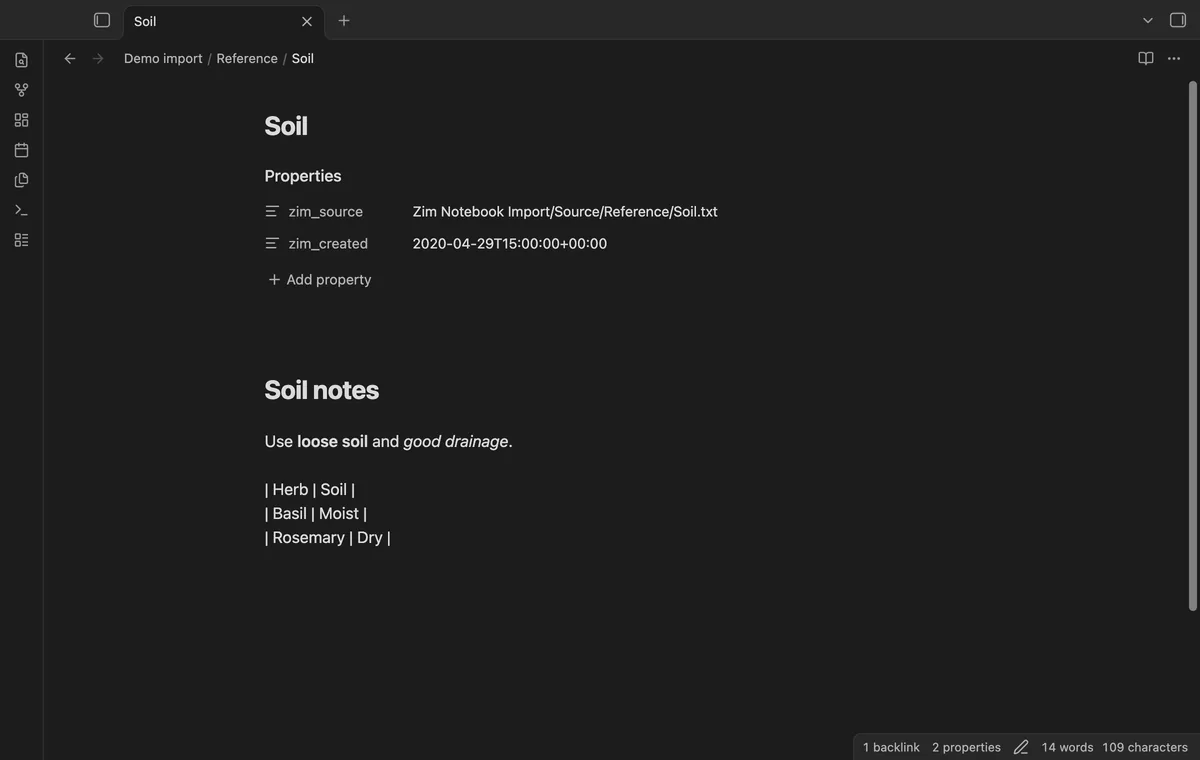
Your Zim page files need syntax conversion before their basic headings and links become Markdown notes. Zim Notebook Import keeps source paths and supported creation dates, so you can check the result against your originals.
Open File, then Export in Zim. Choose the notebook or a page, include subpages if needed, and select Markdown as the format.
Choose an output folder, export the pages and put the resulting Markdown files in your vault. Zim's manual also describes copying notebook attachments during export.
For selected pages, copy the text into Markdown notes and rewrite headings with hash marks. Use Markdown lists and add internal links to the notes you've created.
Obsidian's syntax guide explains headings, nested lists, code blocks and note links. Keep the source open beside the new note while you check it.
Copy the original notebook folder into the vault and run Zim page import. Review mapped paths, the first note preview and detected issues, then write to a new destination.
The converter handles basic syntax and supported child, root and section-relative links. Read the report for unresolved links and recognized unsupported sections before you rely on the result.
MIT · no telemetry · core features free
Copy your Zim notebook folder into the vault, keeping the page directory structure.
Run Zim page import from the command palette.
Enter the source folder and a new destination path relative to the vault.
Select Review plan and inspect paths, conflicts and detected issues.
Select Write new notes, then compare the output and report with your originals.
Keep the page directory structure when copying a notebook into the vault. The importer uses those paths to map supported page links. Other extensions stay in the source folder and appear in the report.
A missing or ambiguous target keeps its source link and appears in the report. Check that source location against the notebook before changing the result.
Keep the partial output so you can inspect what was created. Choose a fresh destination and review a new plan before writing again.
 You can now import Zim notebooks into Obsidian.
You're officially a regular.
Obsidian rewards people who share. NoteMods is just me and a lot of coffee. If this guide saved you a fight with the syntax, buy me a cup.
That's visit . Regulars are the reason I keep NoteMods running. If it's part of your routine now, a coffee says thanks better than anything.
Review Zim paths, convert text and links, and check the report.