Bases Distinct Values · Obsidian plugin documentation
Bases Distinct Values documentation
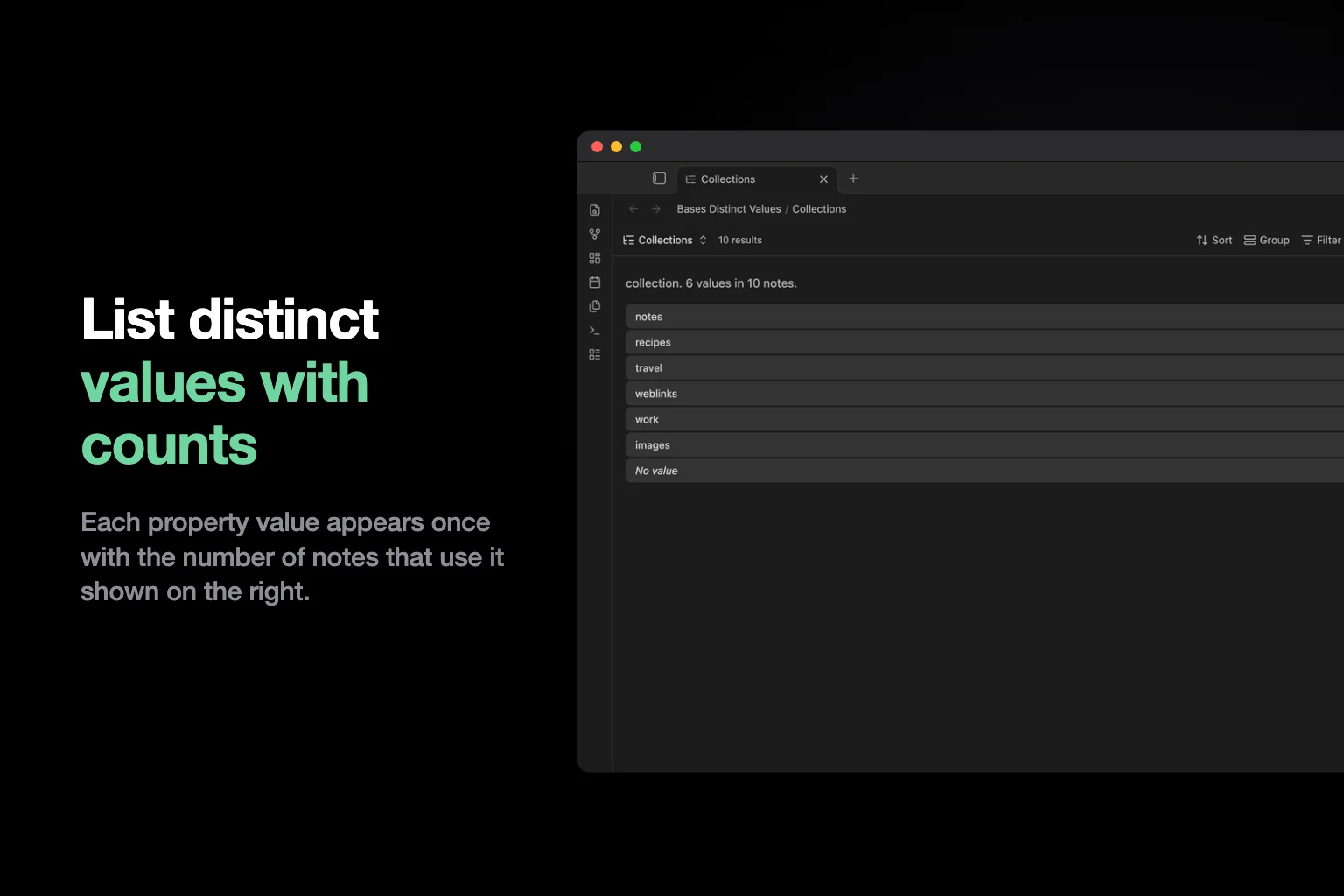
List the distinct values of a property in a Bases view and filter by one.
Bases Distinct Values adds a view type called Distinct values to Obsidian Bases. Pick a property, such as collection or status. The view shows each different value of that property once, with the number of notes that hold it. Select a value to see only the notes with that value. Select it again to see every value.
It answers a common forum question. People ask how to collapse a base so that it shows each unique value one time, with a count next to it. Until now the usual answer was a Dataview query with GROUP BY, plus a second query for notes with no value. This view does both jobs inside the base that you already have.
Version 1.0.0. Requires Obsidian 1.10.3 or later. Works on desktop and mobile.
1 Installation
When Bases Distinct Values is listed in the community directory, open Settings, then Community plugins, then Browse, and search for "Bases Distinct Values". Select Install, then Enable.
To install by hand, download main.js, manifest.json and styles.css from the latest release. Put the three files in <vault>/.obsidian/plugins/bases-distinct-values/. Restart Obsidian or reload the list of community plugins, then turn on Bases Distinct Values.
The core Bases plugin must be on. Bases comes with Obsidian 1.10 and later.
2 Getting started
- Open a
.basefile, or a note with an embedded base. - Open the view menu at the top left of the base and add a new view.
- Choose Distinct values as the layout.
- Open the view options and choose the property in the Property field.
- Select a value row to see its notes. Select it again to clear the filter.
If you leave the Property field empty, the view uses the first visible column that is not the file name. Use the Properties menu of the base to change the visible columns. When the base has no column of that kind, the view asks you to choose a property.
The view reads the same rows as the other views of the base, after filters and the result limit. It does not use the group by setting of the base. It lists each value over all rows. You can keep a table view and a Distinct values view in the same base and switch between them with the view menu.
Formula properties and file properties work too. Choose file.folder to count notes per folder, or a formula that gives a short label. Dates, numbers and links show as their text form.
3 Features
Distinct values with counts
Open a base, add a view and choose Distinct values. Each value of the chosen property gets one row. The number on the right of the row is the count of notes that hold that value.
An example. Three notes have collection: notes, collection: images and collection: notes. The view shows notes with 2 and images with 1. A list property counts each item. A note with collection: [notes, images] adds 1 to notes and 1 to images. A note that repeats one item in its list still counts one time for that value.
The view keeps your base filters. Only the notes that the base shows are counted. The text above the list gives the totals, for example "collection. 6 values in 10 notes."
Filter by one value
Select a value row to filter. The list then shows only that value, and below it the notes that hold it. Each note name is a link. Click it to open the note. Hold Ctrl or Cmd to open it in a new tab. Hover over the name with Ctrl or Cmd held down to see a page preview.
To show all values again, select the Show all values button or select the same value a second time. The filter lives only in the open view. It does not change the base file or any note. An edit can remove the selected value, for example a rename in the last note that held it. The view then drops the filter and shows all values.
Notes with no value
Notes where the property is missing, empty, an empty list or only spaces go into one row called No value. This row is always at the bottom, also when it has the most notes. Select it to get the list of notes that still need a value. It is the same list that people build with a second Dataview query today.
4 Settings
Bases Distinct Values has no settings tab. Each view has its own options in the view options menu of the base. Obsidian saves them in the base file with the view.
| Option | Default | What it does |
|---|---|---|
| Property | First visible column | The property whose values the view lists. |
| Sort values | Most notes first | Most notes first, or A to Z. Ties in note count sort A to Z. |
| Count each list item | On | On counts each item of a list. Off counts a whole list as one value, with items joined by a comma. |
| Ignore letter case | Off | On puts Draft and draft in one row. The row shows the form of the first note in view order. |
A to Z uses numeric order, so item 2 comes before item 10. Accented letters stay different from plain letters, so café and cafe are two rows. The same letter typed in two Unicode forms is one row.
5 Privacy, payment and network
Bases Distinct Values is free and open source. It has no paid features, no license key and no trial. It does not ask you to sign in or create an account. It makes no network requests of any kind, and it has no analytics, telemetry or ads. It reads the notes that the base shows, through the Bases API of Obsidian. It writes nothing to your notes. The view options are saved in the base file by Obsidian itself. The fundingUrl in manifest.json points to the author's GitHub Sponsors page. A gift there is optional and changes nothing in the plugin.
6 Questions and answers
Why do the counts add up to more than the number of notes?
A note with a list counts one time for each item. A note with three tags in the property adds 1 to three rows. Turn off Count each list item to count each note one time.
Can I change a value in all its notes from this view?
No. This view only reads. It never writes to a note or to the base file. Use a table view, or a bulk edit plugin, to change values.
Does it use the group by setting?
No. Grouping and distinct values answer the same question in two ways. The view lists values over all rows of the base.
How many values can it show?
It counts every value. To stay fast, it draws the first 300 rows of the sorted list. A line under the list then says how many values exist. Add a filter to the base to see fewer values. The note list under a selected value shows the first 500 notes in the same way.
Does it work on mobile?
Yes. The view uses plain buttons and links, and it has no desktop only code.
Where does the filter go when I close the base?
The filter is not saved. The base opens with all values the next time.
7 Support
Report a bug or ask for a feature in the issue tracker of this repository. Include your Obsidian version, your device, and a short sample base that shows the problem. To support the work, use GitHub Sponsors.
To build from source:
npm ci
npm run build
npm test
The tests check 9 golden cases, such as three notes that give notes 2 and images 1, and the view in an in-memory document.
8 License
MIT