Vault Schema Guard · Obsidian plugin documentation
Vault Schema Guard documentation
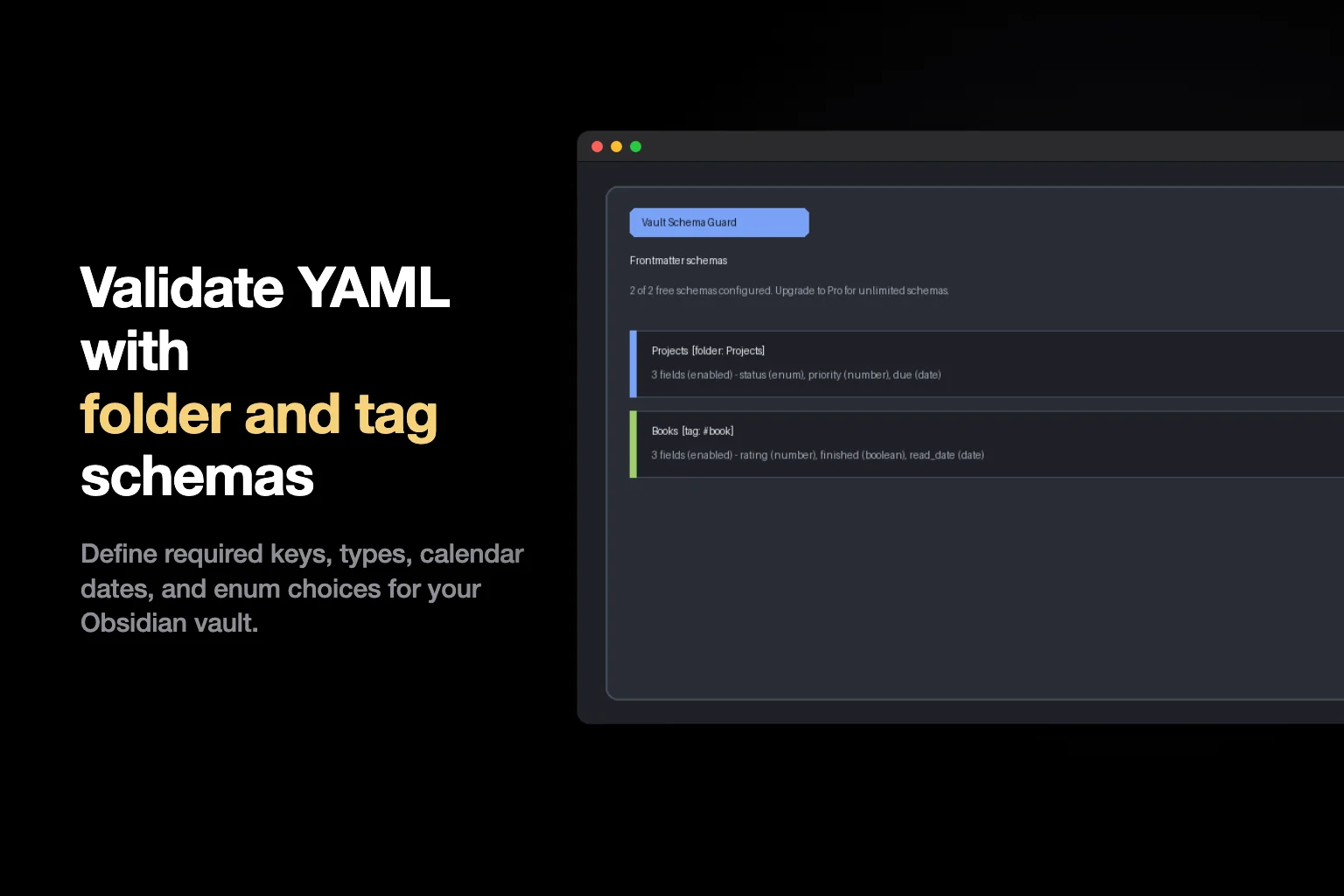
Vault Schema Guard checks YAML frontmatter across your Obsidian vault against folder and tag schemas. Catch missing required keys, mistyped numbers or dates, and invalid enum values the moment you open or edit a note.
All schema validation, inline warnings, compliance dashboards, batch fixes, undo history, and .base schema inference run locally on desktop and mobile with no API key or cloud account required for free features.
Version 1.0.0. Requires Obsidian 1.13.4 or later. Works on desktop and mobile.
1 Installation
Open Settings, then Community plugins, then Browse, and search for "Vault Schema Guard". Select Install, then Enable.
To install by hand, download main.js, manifest.json, and styles.css from the latest release. Place the three files in <vault>/.obsidian/plugins/vault-schema-guard/. Reload the list of community plugins, then enable Vault Schema Guard.
Vault Schema Guard requires Obsidian 1.13.4 or newer and works on both desktop and mobile.
2 Getting started
- Open Settings or run "Manage frontmatter schemas" from the command palette to review the starter
Projectsschema or add a second free folder or tag schema. - Open any note inside a targeted folder or carrying a targeted tag. Check the status bar badge or inline warning banner for live feedback.
- Run "Check active note frontmatter" (or click the ribbon icon or status bar) to inspect every violation and apply a single-note fix.
- For Pro workflows, run "Open compliance dashboard" to audit the whole vault, "Batch auto-fix vault frontmatter" to preview and repair notes in bulk, "Undo last batch auto-fix" to revert a batch, or "Infer schema from base file" to build a schema from an existing
.basedefinition.
3 Features
Folder and tag frontmatter schemas
Create reusable frontmatter rules scoped to any vault folder prefix or note tag. Each field defines a property key, allowed type (text, number, boolean, date, list, or enum), required flag, optional default value, and enum choices. Date validation checks calendar dates in YYYY-MM-DD format and flags entries such as 2026-02-30. The free tier supports up to 2 schemas.
Live inline and status bar warnings
When you switch notes or edit YAML properties, Vault Schema Guard re-checks the active note automatically. The status bar displays Schema: OK or Schema: 2 issues and opens the inspection window on click. Non-compliant notes also show an inline warning banner at the top of the Markdown view with an Inspect button.
Active note schema check and single-note fix
Run "Check active note frontmatter" from the command palette, ribbon button, or status bar to list every matched schema and violation (missing-required, wrong-type, or invalid-enum) with expected format, actual value, and suggested repair. Click Fix active note to apply safe defaults and type coercions while keeping unrelated properties and your note body untouched.
Full-vault compliance dashboard (Pro)
Open a dedicated Obsidian view that scans every Markdown note in your vault against all enabled schemas. Review summary counts for scanned notes, matched notes, compliant notes, and total violations. Filter by schema or violation type, then click any note path to open it.
Batch auto-fix with dry-run preview and undo stack (Pro)
Repair notes across the vault in one step. Batch auto-fix fills missing required keys from defaults, converts quoted numbers and booleans, normalizes YYYY/MM/DD or ISO timestamps to YYYY-MM-DD, wraps scalars into lists, and fixes enum casing. Review every proposed before-and-after change in the dry-run preview modal first. Applying pushes a snapshot onto the undo stack so "Undo last batch auto-fix" restores every modified note.
Auto-infer schema from Obsidian .base files (Pro)
Pick any .base file in your vault and let Vault Schema Guard inspect its filters, properties, and views order alongside matching notes. It detects folder or tag targets, infers field types and required flags, and saves the new schema in one click.
4 Commands
Open the command palette and type the plugin name to see these commands. You can give each one a hotkey in Settings, Hotkeys.
| Command | Command id |
|---|---|
| Check active note frontmatter | vault-schema-guard:check-active-note |
| Manage frontmatter schemas | vault-schema-guard:manage-schemas |
| Open compliance dashboard | vault-schema-guard:open-compliance-dashboard |
| Batch auto-fix vault frontmatter | vault-schema-guard:batch-auto-fix |
| Undo last batch auto-fix | vault-schema-guard:undo-batch-fix |
| Infer schema from base file | vault-schema-guard:infer-schema-from-base |
5 Settings
After a minor or major update, this plugin opens one What's new tab in the background. The tab and settings card suggest other NoteMods plugins and Zovo Chat and link to notemods.com for feedback (privacy). The tab sends no data. Turn the tab off in Settings.
| Setting | Default | Allowed values |
|---|---|---|
| Show status bar warnings | On | On or off. |
| Show inline warning banner | On | On or off. |
| Frontmatter schemas | 1 starter schema (Projects) |
Up to 2 schemas in Free; unlimited in Pro. |
6 Pro
The command "What Pro adds" shows each paid feature with an interactive demo on sample data.
- Define unlimited folder and tag frontmatter schemas across your vault without the 2-schema free limit.
- Inspect every note in a full-vault compliance dashboard with filters by schema and violation type.
- Run one-click batch auto-fix across the vault with a dry-run preview and an undo stack.
- Infer a typed frontmatter schema automatically from any Obsidian .base file and its matching notes.
Sponsor $5 a month, or $15 once. When you have paid $15 in total, Pro stays on.
Sponsor through the links above, then sign in from the plugin settings.
7 Privacy, payment and network
The core features are free. Pro features need a GitHub Sponsors sponsorship of theluckystrike: $5 a month or more, or $15 once. A total payment of $15 meets the payment requirement for Pro without further payment. Sign-in and the checks below still apply. Your notes stay readable and editable with or without Pro.
One payment turns on Pro in every NoteMods plugin.
GitHub handles the payment. Sponsor at https://github.com/sponsors/theluckystrike/sponsorships?tier_id=666162&frequency=one-time&metadata_source=vault-schema-guard. You need no account for the free features. Pro needs the GitHub account that sponsors.
Until you select "Sign in with GitHub" in the settings, Vault Schema Guard makes no network requests. Sign in uses the GitHub device flow. Vault Schema Guard sends its public client ID and the scope read:user to https://github.com/login/device/code and shows you a code. While you enter the code at https://github.com/login/device, it asks https://github.com/login/oauth/access_token every few seconds to check the sign-in status. The scope permits profile reads only. GitHub needs this access to show the sponsorship tier. It grants no repository scope and no write access.
After sign in, Vault Schema Guard sends one query to https://api.github.com/graphql. It checks if the signed-in account sponsors theluckystrike. It asks for the tier and the total payment to theluckystrike. The plugin reuses a successful check for 7 days. Failed checks can retry after 6 hours. Select Refresh to request an earlier check. It sends no note content, file names or other vault data, and it has no telemetry.
After a successful check, Pro can work offline for up to 14 days. Sign out or a negative sponsorship answer turns Pro off. The plugin stores the GitHub token through the secret storage API of Obsidian. It does not put the token in its saved settings or its local sponsorship data. The local storage of this device keeps your GitHub login, the tier and the time of the last check. Sign out clears the token. You can also revoke the access in your GitHub settings, under Applications.
8 Questions and answers
Does auto-fix alter my note body or unrelated frontmatter keys?
No. Both single-note fix and Pro batch auto-fix only modify the specific frontmatter keys that failed validation and have a safe coerced or default value. All other properties and the entire Markdown body remain untouched.
How does the undo stack work after a batch auto-fix?
Each batch auto-fix stores an in-memory snapshot of the original content of every modified file (up to 20 recent batches). Running "Undo last batch auto-fix" or clicking Undo last batch in the compliance dashboard restores those files immediately.
Can a single note match more than one schema?
Yes. If a note lives in a matched folder and also carries a matched tag, Vault Schema Guard checks every enabled schema that matches the note and groups violations by schema name.
Does it work on mobile?
Yes. All validation, modals, dashboard views, batch fixes, and .base inference run in pure JavaScript inside Obsidian without native binaries. Mobile devices do not show a status bar, so use the inline warning banner, ribbon icon, or command palette on phones and tablets.
9 Support
Plugin page: vault-schema-guard.
Report a bug or ask for a feature in the issue tracker of this repository. Include your Obsidian version and a minimal sample note.
To build from source:
npm ci
npm run build
npm test
10 License
MIT