Month Calendar · Obsidian plugin documentation
Month Calendar documentation
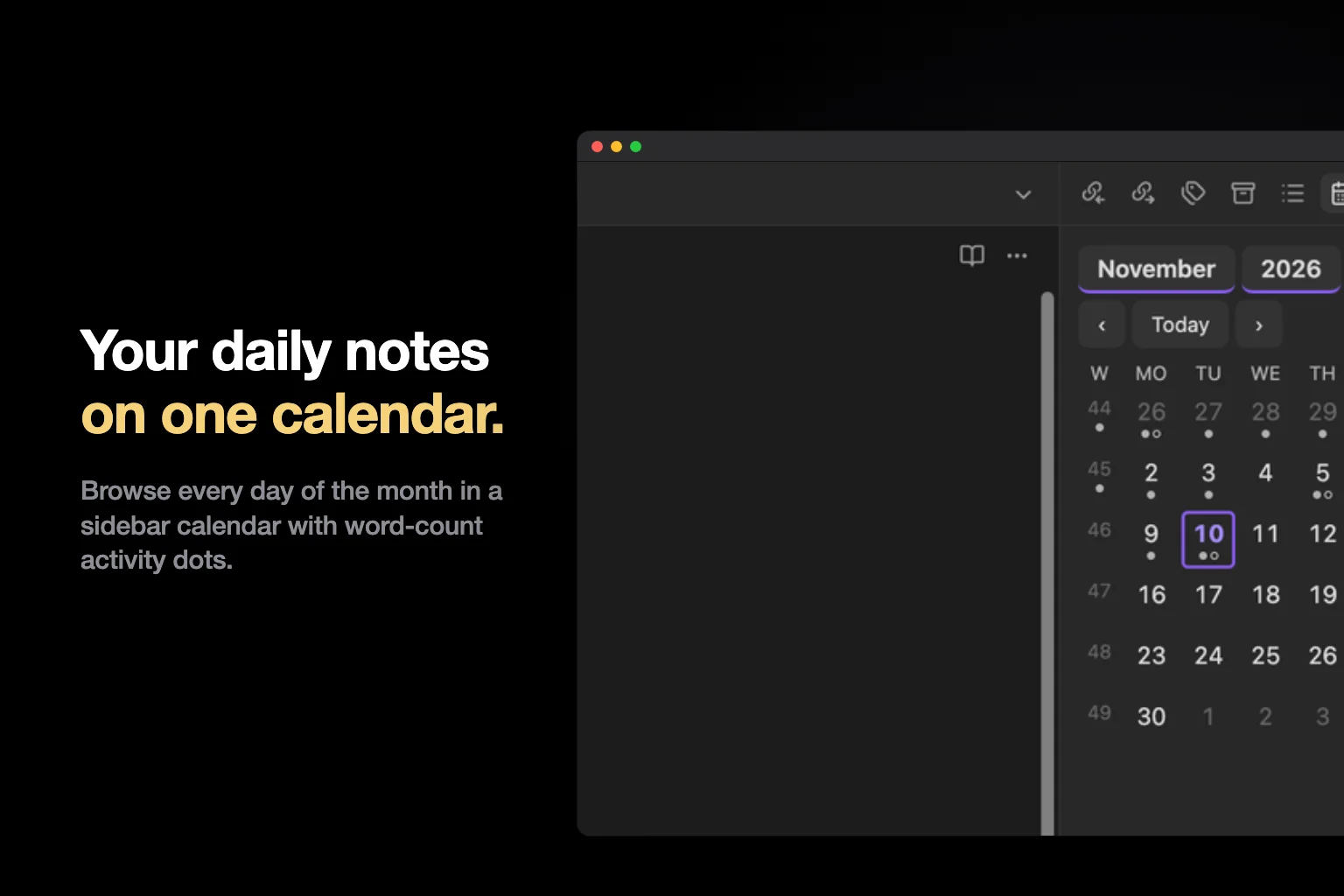
Shows your daily notes on a month calendar with dots for words, week numbers and a tap to open or create a note.
Month Calendar puts a month view in the right sidebar. It reads the folder, format and template of core Daily notes, so you set nothing up twice.
Version 1.0.0. Requires Obsidian 1.13.4 or later. Works on desktop and mobile.
1 Installation
When Month Calendar is listed in the community directory, open Settings, then Community plugins, then Browse, and search for "Month Calendar". Select Install, then Enable.
To install by hand, download main.js, manifest.json and styles.css from the latest release. Put the three files in <vault>/.obsidian/plugins/month-calendar/. Restart Obsidian or reload the list of community plugins, then turn on Month Calendar.
2 Getting started
Quick start
- Turn on Month Calendar. The calendar appears one time in the right sidebar.
- Select today to open or create your daily note.
- Use the arrows next to the title to move one month back or forward. Select Today to come back.
- If you closed the pane, run the command "Open calendar" from the command palette.
Commands
The command palette has four commands. "Open calendar" shows the pane. "Open the weekly note of this week", "Open the monthly note of this month" and "Open the yearly note of this year" open or create those notes without the pane.
Keyboard and touch
Press Tab to move between cells and Enter to open a note. On a phone or a tablet, each cell is at least 44 pixels wide and high, so a tap hits the right day.
Templates
A new note copies its template. The template can hold {{title}}, {{date}} and {{time}}, like core Daily notes. {{date:dddd}} gives the weekday name, and {{date:YYYY-[W]ww}} gives a week name.
3 Features
Month view with dots
Each day of the month is a cell. A day with a daily note gets dots under its number. One dot means a note, and each 250 words add one more dot, up to five. A day with an open task gets a small ring next to the dots. Today has a thin accent ring, and the day of the note that you have open has a thicker ring, so a heat colour stays visible.
Open or create a daily note
Select a day to open its note. When the day has no note, Month Calendar creates it in the daily notes folder with the daily note template, then opens it. Hold Ctrl (Cmd on macOS) or use the middle mouse button for a new tab. Turn on "Ask before you create a note" if you want a question first.
A note in a subfolder of the daily notes folder also counts, for example Daily/2026/11/2026-11-10.md. A note in that folder whose name starts with a date adds dots too. For the format YYYYMMDD, "20241105 Title" shows on 5 November 2024. A click still opens or creates the exact daily note. Dated notes elsewhere never count.
Week numbers and weekly notes
The first column shows the week number of each row. Select a week number to open or create the weekly note of that week. A dot under the number shows that the weekly note exists. The week start and the rule for week 1 come from your locale. You can change both in the settings, for example to ISO 8601 weeks that start on Monday.
Monthly and yearly notes
The month name and the year above the grid are buttons. Select the month name to open or create the monthly note, and the year to open or create the yearly note. A line under the name shows that the note exists.
Quarter and year cells (Pro)
Pro adds a row under the month with Q1, Q2, Q3, Q4 and the year. Each cell opens or creates its note and shows a dot when the note exists.
Heat colours, tag colours and date property (Pro)
Pro can colour each day by a number property of its daily note, for example mood or sleep. The day with the highest value of the month gets the strongest colour. Pro can also colour the dots by tag, for example blue for #work. With a date property, any note with that property shows as a dot on its day, also when it is not a daily note.
4 Commands
Open the command palette and type the plugin name to see these commands. You can give each one a hotkey in Settings, Hotkeys.
| Command | Command id |
|---|---|
| Open calendar | month-calendar:open |
| Open the weekly note of this week | month-calendar:open-week |
| Open the monthly note of this month | month-calendar:open-month |
| Open the yearly note of this year | month-calendar:open-year |
5 Settings
Calendar
- Locale. The language of the month and weekday names. "Same as Obsidian" follows the language of the app.
- Week start. Locale default, Sunday, Monday or Saturday.
- First week of the year. Locale default, ISO 8601 (the week with January 4), or the week with January 1.
- Show week numbers. On by default.
- Ask before you create a note. Off by default.
Daily notes
- Source of the settings. Core Daily notes reads the folder, format and template of the core plugin. Custom uses the three fields under it.
- Match a date at the start of the name. On by default.
Weekly, monthly, yearly and quarterly notes
Each kind has a folder, a name format and a template. The defaults are gggg-[W]ww, YYYY-MM, YYYY and YYYY-[Q]Q. In a weekly format, gggg and ww are the week year and the week number of the calendar rows, so the note always matches its row.
Pro
- Show quarter and year cells.
- Heat colour property, for example mood.
- Dot colours by tag, one rule on each line, for example #work blue. The colours are red, orange, yellow, green, cyan, blue, purple and pink.
- Date property, for example date.
After a minor or major update, this plugin opens one What's new tab in the background. The tab and settings card suggest other NoteMods plugins and Zovo Chat and link to notemods.com for feedback (privacy). The tab sends no data. Turn the tab off in Settings.
6 Privacy, payment and network
The core features are free. Pro features need a GitHub Sponsors sponsorship of theluckystrike: $5 a month or more, or $15 once. A total payment of $15 meets the payment requirement for Pro without further payment. Sign-in and the checks below still apply. Your notes stay readable and editable with or without Pro.
One payment turns on Pro in every NoteMods plugin.
GitHub handles the payment. Sponsor at https://github.com/sponsors/theluckystrike/sponsorships?tier_id=666162&frequency=one-time&metadata_source=month-calendar. You need no account for the free features. Pro needs the GitHub account that sponsors.
Until you select "Sign in with GitHub" in the settings, Month Calendar makes no network requests. Sign in uses the GitHub device flow. Month Calendar sends its public client ID and the scope read:user to https://github.com/login/device/code and shows you a code. While you enter the code at https://github.com/login/device, it asks https://github.com/login/oauth/access_token every few seconds to check the sign-in status. The scope permits profile reads only. GitHub needs this access to show the sponsorship tier. It grants no repository scope and no write access.
After sign in, Month Calendar sends one query to https://api.github.com/graphql. It checks if the signed-in account sponsors theluckystrike. It asks for the tier and the total payment to theluckystrike. The plugin reuses a successful check for 7 days. Failed checks can retry after 6 hours. Select Refresh to request an earlier check. It sends no note content, file names or other vault data, and it has no telemetry.
After a successful check, Pro can work offline for up to 14 days. Sign out or a negative sponsorship answer turns Pro off. The plugin stores the GitHub token through the secret storage API of Obsidian. It does not put the token in its saved settings or its local sponsorship data. The local storage of this device keeps your GitHub login, the tier and the time of the last check. Sign out clears the token. You can also revoke the access in your GitHub settings, under Applications.
7 Questions and answers
Do I need the core Daily notes plugin?
No. Month Calendar reads the saved settings of core Daily notes when they exist. Without them it uses the vault root and the format YYYY-MM-DD. You can also set a custom folder and format.
Why does week 1 start in December?
Week numbers follow a rule. In ISO 8601, week 1 is the week with January 4, so 29 December 2025 is in week 1 of 2026. In the United States, week 1 is the week with January 1.
Does it move my notes or change their text?
No. Month Calendar only reads notes and creates a new note when you select an empty day, week, month or year.
Does it work in a large vault?
Yes. It reads the list of notes when the pane opens and after a note is created, renamed or deleted. It counts words only for the month that shows.
8 Support
Plugin page: month-calendar.
Report bugs and ask for features in the GitHub issues of this repository. Add your Obsidian version and your daily note format.
9 License
MIT